Browser Security Tips: How to Browse the Web Safely
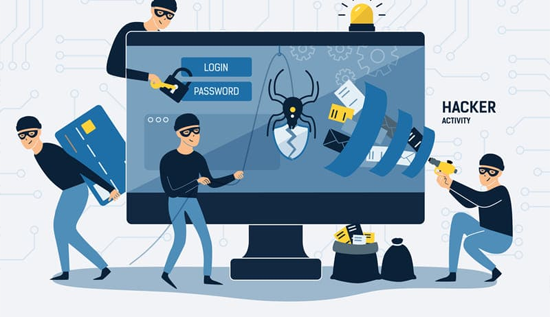
Learn the best browser security tips to protect your privacy, block cyber threats, and enjoy secure web browsing. Discover how to make your browser more secure and browse the internet safely.
The internet has become an essential part of everyday life. Whether you are checking emails, shopping online, accessing banking services, working remotely, or simply browsing social media, your web browser acts as the gateway to the online world. Unfortunately, cybercriminals also use browsers as a common entry point to steal personal information, spread malware, and launch phishing attacks.
Following the right browser security tips helps reduce these risks while improving your overall online experience. Modern browsers include numerous security features, but users still need to configure them correctly and adopt safe browsing habits.
This guide explains everything you need to know about browser security, including practical ways to improve your browser's defenses, protect your privacy, and browse the web safely.
What Is Browser Security?
Browser security refers to the technologies, settings, and best practices that protect users while accessing websites through internet browsers.
A secure browser helps defend against threats such as:
- Malware downloads
- Phishing websites
- Identity theft
- Password theft
- Browser hijacking
- Tracking cookies
- Malicious browser extensions
- Data leaks
Good internet browser security combines built-in browser protections with responsible user behavior.
Why Browser Security Matters
Every day, billions of people use web browsers to access sensitive information.
This includes:
- Online banking
- Shopping
- Email accounts
- Social media
- Business systems
- Government portals
- Healthcare services
Without proper secure web browsing, attackers may steal:
- Passwords
- Credit card information
- Personal identities
- Financial data
- Business credentials
Cyber threats continue evolving, making web browser security tips more important than ever.
Common Browser Security Threats
Understanding the risks helps you better protect yourself.
1. Phishing Websites
Fake websites imitate legitimate businesses to steal login credentials.
Examples include fake:
- Banks
- PayPal pages
- Microsoft login screens
- Google accounts
- Online shopping sites
Always verify website URLs before entering sensitive information.
2. Malware Downloads
Some websites automatically attempt to install:
- Spyware
- Ransomware
- Adware
- Trojans
- Keyloggers
Modern browsers often block suspicious downloads, but users should remain cautious.
3. Browser Hijacking
Browser hijackers may change:
- Homepage
- Default search engine
- New tab page
- Browser settings
They often arrive through unwanted software bundles.
4. Malicious Extensions
Browser extensions can improve productivity but may also:
- Read browsing history
- Collect passwords
- Track online activity
- Inject advertisements
- Redirect searches
Install extensions only from trusted sources.
5. Tracking Cookies
Many websites use cookies to:
- Remember preferences
- Track browsing behavior
- Build advertising profiles
While not always dangerous, excessive tracking impacts privacy.
Browser Security Tips Everyone Should Follow
These practical browser security tips significantly improve online safety.
Keep Your Browser Updated
Updates include:
- Security patches
- Bug fixes
- Improved privacy protections
- Performance improvements
Enable automatic updates whenever possible.
Popular browsers update frequently to address newly discovered vulnerabilities.
Use Strong Passwords
Never reuse passwords across multiple websites.
Instead:
- Create unique passwords
- Use long passphrases
- Store them in a password manager
If one account becomes compromised, others remain protected.
Enable Two-Factor Authentication (2FA)
Whenever available, activate 2FA.
Even if attackers steal your password, they still need:
- Authentication app
- Security key
- SMS verification code
This greatly improves account security.
Only Visit HTTPS Websites
Look for:
- HTTPS
- Padlock icon
HTTPS encrypts data exchanged between your browser and websites.
Avoid entering passwords on HTTP websites.
Be Careful with Downloads
Never download software from unknown websites.
Download only from:
- Official vendor websites
- Trusted app stores
- Verified repositories
Avoid "free cracked software" downloads.
Install Trusted Extensions Only
Review:
- Ratings
- Reviews
- Permissions
- Developer reputation
Remove unused extensions regularly.
Every extension increases your browser's attack surface.
Block Pop-Ups
Malicious pop-ups often contain:
- Fake virus alerts
- Scam messages
- Malware downloads
Most browsers include built-in pop-up blockers.
Keep them enabled.
Clear Browsing Data
Regularly delete:
- Cookies
- Cache
- Browsing history
This reduces tracking and removes stored website data.
Review Browser Permissions
Websites may request access to:
- Camera
- Microphone
- Location
- Notifications
Grant only necessary permissions.
Remove permissions for websites you no longer trust.
Avoid Public Wi-Fi Without Protection
Public Wi-Fi networks are attractive targets for hackers.
If using public Wi-Fi:
- Avoid banking
- Avoid sensitive logins
- Use a trusted VPN
- Enable HTTPS-only mode
Browser Privacy Tips for Better Protection
Privacy and security often go together.
These browser privacy tips improve both.
Block Third-Party Cookies
Third-party cookies track activity across websites.
Most browsers now allow:
- Blocking third-party cookies
- Enhanced tracking protection
This reduces targeted advertising.
Use Private Browsing
Private browsing:
- Doesn't save history
- Deletes cookies after sessions
- Removes temporary browsing data
It does not make you anonymous online.
Your ISP and websites may still track activity.
Limit Saved Passwords
Although browsers offer password storage, dedicated password managers often provide stronger security features.
These include:
- Encrypted storage
- Security monitoring
- Password sharing
- Dark web alerts
Disable Unnecessary Syncing
Browser syncing is convenient but increases exposure if accounts are compromised.
Only sync:
- Bookmarks
- Passwords
- Settings
When protected by strong authentication.
How to Improve Browser Security
Many users ask, "How to improve browser security?"
Here are practical improvements.
Enable Safe Browsing
Modern browsers offer phishing protection.
Safe Browsing can:
- Warn about malicious websites
- Block malware downloads
- Prevent dangerous redirects
Always keep it enabled.
Turn On DNS-over-HTTPS
DNS-over-HTTPS encrypts DNS requests.
Benefits include:
- Better privacy
- Reduced ISP monitoring
- Protection from DNS spoofing
Many browsers support it.
Enable HTTPS-Only Mode
Some browsers automatically upgrade websites to HTTPS.
This prevents unsecured connections whenever possible.
Remove Unused Extensions
Audit browser extensions monthly.
Delete extensions you:
- Don't use
- Don't recognize
- No longer need
Less software means fewer security risks.
Check Browser Security Settings
Review settings regularly.
Enable:
- Safe browsing
- Site isolation
- Enhanced protection
- Automatic updates
How Can I Make My Browser More Secure?
Many users wonder, "How can I make my browser more secure?"
Follow this checklist:
- Update the browser
- Use strong passwords
- Enable 2FA
- Remove risky extensions
- Block third-party cookies
- Enable Safe Browsing
- Turn on HTTPS-only mode
- Clear cookies regularly
- Install security updates
- Review website permissions
- Use a password manager
- Avoid suspicious websites
Together, these actions dramatically improve browser protection.
Which Browser Is the Safest?
Many people ask, "Which browser is the safest?"
No browser is perfect, but several provide strong security features.
Google Chrome
Strengths:
- Frequent updates
- Strong phishing detection
- Site isolation
- Extensive extension ecosystem
Weakness:
- Larger amount of user data collection.
Mozilla Firefox
Strengths:
- Strong privacy controls
- Open-source
- Enhanced Tracking Protection
- Customizable security settings
Ideal for privacy-conscious users.
Microsoft Edge
Strengths:
- Microsoft Defender SmartScreen
- Excellent phishing protection
- Password monitoring
- Tracking prevention
Built on Chromium.
Apple Safari
Strengths:
- Intelligent Tracking Prevention
- Strong integration with Apple security
- Good energy efficiency
Excellent for macOS and iPhone users.
Brave
Strengths:
- Built-in ad blocker
- Tracker blocking
- HTTPS upgrades
- Privacy-focused design
Popular among users prioritizing privacy.
Browser Comparison
| Browser | Privacy | Security | Ease of Use |
|---|---|---|---|
| Chrome | Good | Excellent | Excellent |
| Firefox | Excellent | Excellent | Excellent |
| Edge | Very Good | Excellent | Excellent |
| Safari | Excellent | Excellent | Excellent |
| Brave | Outstanding | Excellent | Very Good |
The answer to "Which browser is the safest?" depends on your priorities. For privacy, Firefox and Brave are strong choices. For broad compatibility and frequent updates, Chrome and Edge remain excellent options.
How Do I Browse the Internet Safely?
A common question is, "How do I browse the internet safely?"
Adopt these habits:
Verify Website Addresses
Look carefully for:
- Misspellings
- Extra characters
- Fake domains
Cybercriminals often mimic legitimate websites.
Avoid Clicking Unknown Links
Links may arrive through:
- SMS
- Social media
- Messaging apps
Hover over links before clicking.
Never Ignore Browser Warnings
Security warnings exist for a reason.
Never bypass:
- Certificate errors
- Malware warnings
- Unsafe download alerts
Log Out of Sensitive Accounts
Especially on:
- Shared computers
- Public devices
- Internet cafés
Always sign out completely.
Use Antivirus Protection
Browser security works best alongside:
- Antivirus software
- Firewall
- Operating system updates
Layered security provides better protection.
Browser Security Mistakes to Avoid
Even experienced users make mistakes.
Common examples include:
- Ignoring updates
- Installing too many extensions
- Reusing passwords
- Clicking suspicious advertisements
- Saving passwords on public computers
- Using outdated browsers
- Disabling browser security features
- Downloading pirated software
Avoiding these mistakes significantly improves secure web browsing.
Secure Web Browsing for Businesses
Organizations should establish browser security policies.
Recommended practices include:
- Centralized browser management
- Mandatory updates
- Endpoint security software
- Employee cybersecurity training
- Extension approval policies
- Multi-factor authentication
- Website filtering
- DNS security
Businesses face greater risks because compromised browsers may expose company data.
Browser Security on Mobile Devices
Mobile browsers require the same attention as desktop browsers.
Security tips include:
- Keep your phone updated.
- Install apps only from official stores.
- Avoid unknown Wi-Fi networks.
- Enable biometric authentication.
- Lock your device.
- Review browser permissions.
- Avoid sideloading apps.
- Enable device encryption.
Many attacks now target smartphones rather than traditional computers.
Emerging Browser Security Trends
Browser security continues evolving to address new cyber threats.
AI-Powered Threat Detection
Artificial intelligence helps browsers:
- Detect phishing websites
- Identify suspicious downloads
- Block malicious scripts
Passwordless Authentication
More websites now support:
- Passkeys
- Biometrics
- Security keys
These methods reduce password-related attacks.
Improved Privacy Controls
Modern browsers increasingly include:
- Tracker blocking
- Cookie management
- Fingerprinting protection
- Privacy dashboards
Users gain greater control over their personal information.
Enhanced Sandboxing
Sandboxing isolates browser processes.
If one tab becomes compromised, attackers have greater difficulty affecting the entire system.
Browser Security Best Practices Checklist
Use this checklist for safer browsing:
- ✔ Keep browsers updated
- ✔ Enable Safe Browsing
- ✔ Turn on HTTPS-only mode
- ✔ Use strong passwords
- ✔ Enable two-factor authentication
- ✔ Install trusted extensions only
- ✔ Delete unused extensions
- ✔ Block third-party cookies
- ✔ Clear browsing data regularly
- ✔ Verify website addresses
- ✔ Avoid suspicious downloads
- ✔ Keep antivirus software updated
- ✔ Use secure Wi-Fi connections
- ✔ Review browser permissions
- ✔ Back up important data
Frequently Asked Questions
What is browser security?
Browser security is the collection of technologies, settings, and user practices that protect people from cyber threats while using web browsers.
How can I make my browser more secure?
You can improve security by keeping your browser updated, enabling Safe Browsing, using strong passwords, activating two-factor authentication, limiting extensions, and reviewing browser permissions regularly.
Which browser is the safest?
There is no single perfect browser. Firefox, Brave, Chrome, Edge, and Safari all offer excellent security. The best choice depends on whether you prioritize privacy, compatibility, or built-in protections.
How do I browse the internet safely?
Practice safe browsing by visiting HTTPS websites, avoiding suspicious links, keeping your browser updated, enabling security features, using antivirus software, and staying alert to phishing attempts.
Why are browser updates important?
Updates fix newly discovered vulnerabilities, improve browser stability, add security enhancements, and protect users against emerging cyber threats.
Conclusion
Your web browser is the primary gateway to the internet, making it one of the most important tools to secure. By following these browser security tips, you can significantly reduce the risk of phishing attacks, malware infections, identity theft, and data breaches. Combining strong browser security settings with smart online habits creates a safer digital experience for work, shopping, banking, and everyday browsing.
Whether you're looking for safe browsing tips, better browser privacy tips, or wondering how to improve browser security, the answer lies in consistent maintenance and informed decision-making. Keep your browser updated, use strong passwords with two-factor authentication, limit unnecessary extensions, and always verify the websites you visit. With these best practices, you can enjoy secure web browsing and confidently answer questions like "How can I make my browser more secure?", "Which browser is the safest?", and "How do I browse the internet safely?" with practical, effective solutions.
More Articles
 12 Aug 2026
Best Payment Gateways in Cambodia: 2026 Comparison
Compare the best payment gateways in Cambodia in 2026, including ABA PayWay, ACLEDA, Sathapana, Canadia, Wing, KHQR and features.
 11 Aug 2026
AI Scams in Cambodia: Types & Warning Signs
Learn about AI scams in Cambodia, common warning signs, how AI fraud works, and practical ways to protect yourself from artificial intelligence scams in Cambodia in 2026.
 07 Aug 2026
Green AI Explained: Benefits & Examples
What is Green AI? A complete guide to sustainable AI benefits and examples of efficient technology for a greener future.
 05 Aug 2026
How Much Does SEO Cost in Cambodia? Pricing Guide
SEO cost in Cambodia explained with pricing ranges and expert tips for choosing the right SEO provider.