How to Speed Up Windows PC: Best Performance Tips

Learn how to speed up Windows PC performance with the best optimization tips for 2026. Discover easy ways to fix a slow Windows computer, improve PC performance, and make Windows faster.
How to Speed Up Windows PC: Best Performance Tips for 2026
If your computer feels sluggish, takes forever to boot, or freezes during basic tasks, you are not alone. Millions of users struggle with slow systems caused by outdated software, overloaded startup programs, insufficient storage, malware, and poor maintenance habits. The good news is that you do not always need to buy a new computer. With the right adjustments, you can dramatically improve speed and responsiveness.
This guide covers the best ways to make Windows PC faster in 2026. Whether you use Windows 10 or Windows 11, these proven strategies will help you optimize Windows performance, reduce lag, and enjoy a smoother computing experience.
Why Windows PCs Become Slow Over Time
Before learning how to speed up Windows PC systems, it helps to understand why performance decreases. Common causes include:
- Too many startup applications
- Low disk space
- Malware or unwanted software
- Fragmented hard drives
- Outdated drivers
- Excessive browser extensions
- Background apps consuming RAM
- Overheating hardware
- Aging hard drives
- Insufficient memory
As software becomes more demanding, older systems struggle to keep up. Fortunately, many performance issues can be fixed without expensive upgrades.
Disable Unnecessary Startup Programs
One of the easiest ways to speed up Windows laptop performance is to reduce startup applications.
Many apps automatically launch when Windows starts, slowing boot times and consuming memory.
How to Disable Startup Apps
- Press Ctrl + Shift + Esc
- Open Task Manager
- Click the Startup tab
- Disable apps you do not need immediately after startup
Focus on disabling:
- Chat apps
- Game launchers
- Music apps
- Cloud software you rarely use
Avoid disabling antivirus software or essential system services.
This simple step can significantly speed up Windows computer boot times.
Free Up Disk Space
Low storage can seriously impact system responsiveness. Windows requires free space for temporary files, updates, and virtual memory.
Remove Temporary Files
Use built-in tools:
- Open Settings
- Go to System > Storage
- Enable Storage Sense
You can also run Disk Cleanup:
- Search for Disk Cleanup
- Select your main drive
- Delete:
- Temporary files
- System cache
- Recycle Bin files
- Windows update leftovers
Keeping at least 15–20% of your storage free helps improve PC performance.
Upgrade from HDD to SSD
If your PC still uses a traditional hard disk drive (HDD), upgrading to a solid-state drive (SSD) is one of the best ways to make Windows PC faster.
Why SSDs Are Faster
SSDs provide:
- Faster boot times
- Quicker app launches
- Better multitasking
- Faster file transfers
- Reduced system freezing
An SSD can make an older PC feel brand new.
For users researching how to speed up Windows PC in 2026, SSD upgrades remain the single most impactful hardware improvement.
Increase RAM for Better Multitasking
If your PC slows down with multiple browser tabs or applications open, you may need more RAM.
Signs You Need More Memory
- Browser crashes
- Frequent freezing
- Slow app switching
- High memory usage in Task Manager
Recommended RAM in 2026
- 8GB: Basic use
- 16GB: Recommended for most users
- 32GB: Gaming and professional workloads
Adding RAM is a reliable method to optimize Windows performance.
Uninstall Unused Programs
Unused applications consume storage, background resources, and startup processes.
Remove Programs You Do Not Need
- Open Settings
- Select Apps
- Review installed programs
- Uninstall unused software
Pay attention to:
- Trial software
- Old games
- Duplicate utilities
- Toolbars
- Manufacturer bloatware
Removing unnecessary apps can help fix slow Windows PC problems quickly.
Scan for Malware and Viruses
Malware is a major cause of slow systems.
Viruses, spyware, and unwanted programs often run silently in the background while consuming CPU and RAM resources.
Run a Full Security Scan
Use:
- Windows Security
- Microsoft Defender
- Trusted antivirus software
Avoid downloading unknown software from suspicious websites.
Regular scans are essential if you want to improve PC performance and maintain system stability.
Update Windows Regularly
Microsoft continuously releases updates that improve speed, security, and compatibility.
Check for Updates
- Open Settings
- Go to Windows Update
- Install available updates
Updates often include:
- Bug fixes
- Driver improvements
- Security patches
- Performance enhancements
Keeping Windows current is one of the simplest Windows PC speed tips.
Update Hardware Drivers
Outdated drivers can reduce system performance and cause instability.
Important Drivers to Update
- Graphics drivers
- Network drivers
- Chipset drivers
- Audio drivers
- SSD firmware
You can update drivers through:
- Device Manager
- Manufacturer websites
- Windows Update
Updated drivers help make Windows faster and improve compatibility with modern software.
Reduce Visual Effects and Animations
Windows includes many visual effects that consume system resources.
Disabling unnecessary animations can improve responsiveness, especially on older PCs.
Adjust Performance Settings
- Search for Performance Options
- Select Adjust for best performance
Or manually disable:
- Window animations
- Transparency effects
- Shadows
- Visual transitions
This is an easy tip to speed up Windows laptop systems with limited hardware.
Optimize Your Web Browser
Browsers are often responsible for slow performance.
Too many tabs, extensions, and cached files consume RAM and CPU power.
Browser Optimization Tips
- Remove unnecessary extensions
- Clear browser cache
- Limit open tabs
- Enable sleeping tabs
- Update the browser regularly
Popular browsers like Chrome and Edge include memory-saving features that can improve PC performance significantly.
Restart Your PC More Often
Many users leave their PCs running for days or weeks.
Restarting:
- Clears temporary memory
- Stops background processes
- Refreshes system services
- Applies updates properly
If your PC feels sluggish, a restart may immediately help speed up Windows computer performance.
Manage Background Applications
Background apps silently consume resources even when not actively used.
Disable Background Apps
- Open Settings
- Go to Apps > Installed Apps
- Adjust app permissions
You can also review background processes in Task Manager.
Reducing unnecessary background activity is one of the best ways to optimize Windows performance.
Disable Search Indexing on Older PCs
Windows Search Indexing improves search speed but can slow weaker systems.
Turn Off Indexing
- Search for Services
- Find Windows Search
- Set Startup Type to Disabled
This can help fix slow Windows PC issues on older hardware.
Clean Dust from Your Computer
Overheating reduces performance because CPUs automatically throttle speed to prevent damage.
Physical Cleaning Tips
- Clean air vents
- Remove internal dust
- Improve airflow
- Use cooling pads for laptops
Lower temperatures often lead to better speed and stability.
Adjust Power Settings
Many laptops use balanced or power-saving modes that reduce performance.
Change Power Mode
- Open Settings
- Go to Power & Battery
- Select Best Performance
This helps make Windows faster during demanding tasks.
Defragment HDDs (Not SSDs)
If you use a traditional hard drive, fragmentation slows file access.
Optimize Drives
- Search Defragment and Optimize Drives
- Select your HDD
- Run optimization
Do not manually defragment SSDs unnecessarily because Windows already manages them efficiently.
Disable Unnecessary Browser Startup Pages
Opening multiple websites automatically during browser launch increases startup time.
Set your browser to:
- Open a blank page
- Restore only essential tabs
This is a small but effective Windows PC speed tip.
Use Lightweight Software Alternatives
Heavy software consumes more resources.
Consider lightweight alternatives for:
- Photo editing
- Media playback
- PDF reading
- Note-taking
Older systems especially benefit from less demanding programs.
Reset Windows for a Fresh Start
If performance remains poor, resetting Windows can remove accumulated problems.
Reset Your PC
- Open Settings
- Go to Recovery
- Choose Reset this PC
You can:
- Keep personal files
- Remove everything for a full clean install
This often resolves severe slowdowns and software conflicts.
Disable OneDrive Sync Temporarily
Cloud syncing may consume bandwidth and CPU resources.
If you notice lag:
- Pause synchronization temporarily
- Exclude large folders from syncing
This can improve responsiveness on lower-end devices.
Check for Failing Hardware
Sometimes performance problems are caused by failing components.
Warning Signs
- Clicking hard drives
- Frequent crashes
- Blue screens
- Random freezing
Use hardware diagnostic tools to test:
- SSD/HDD health
- RAM integrity
- CPU temperatures
Replacing damaged hardware can permanently fix slow Windows PC issues.
Use Windows Efficiency Mode
Windows 11 includes Efficiency Mode to reduce resource usage from background applications.
Enable Efficiency Mode
- Open Task Manager
- Right-click high-resource processes
- Select Efficiency Mode
This helps improve PC performance while multitasking.
Turn Off Widgets and News Feeds
Widgets continuously refresh information in the background.
Disabling them can reduce:
- RAM usage
- CPU activity
- Network consumption
This is particularly useful for entry-level laptops.
Limit Startup Browser Extensions
Extensions can slow startup and browsing speed.
Remove:
- Coupon plugins
- Unused productivity tools
- Excessive ad-ons
Keeping only essential extensions helps speed up Windows computer browsing performance.
Reinstall Windows for Maximum Performance
A clean installation removes years of clutter, corrupted files, and hidden software conflicts.
Benefits of Clean Installation
- Faster startup
- Better responsiveness
- Improved stability
- Reduced background activity
For severely outdated systems, reinstalling Windows may be the best solution.
Advanced Windows Performance Tips for 2026
Technology evolves quickly, and modern optimization methods continue improving.
AI-Based Background Optimization
Windows now uses AI-driven resource management to:
- Prioritize active apps
- Reduce idle resource usage
- Improve battery efficiency
DirectStorage Technology
Gamers benefit from DirectStorage support, which:
- Speeds game loading
- Improves texture streaming
- Reduces CPU overhead
Modern SSD Optimization
NVMe Gen 4 and Gen 5 SSDs dramatically outperform older SATA drives.
Upgrading storage remains among the best ways to make Windows PC faster in 2026.
Common Mistakes That Slow Down Windows PCs
Avoid these common habits:
- Installing unnecessary software
- Ignoring updates
- Using multiple antivirus programs
- Keeping hundreds of browser tabs open
- Never restarting the computer
- Allowing storage to fill completely
- Downloading software from untrusted sources
Preventing these mistakes helps maintain long-term speed.
Best Maintenance Habits for Long-Term Speed
To keep your system running smoothly:
Weekly Tasks
- Restart the PC
- Clear temporary files
- Update software
Monthly Tasks
- Scan for malware
- Review startup programs
- Clean dust buildup
Yearly Tasks
- Evaluate storage upgrades
- Check battery health
- Consider RAM upgrades
Regular maintenance is essential if you want to consistently optimize Windows performance.
Final Thoughts
Learning how to speed up Windows PC systems does not require advanced technical skills. Small improvements such as disabling startup apps, removing junk files, updating drivers, and installing an SSD can dramatically improve speed and responsiveness.
Whether you want to fix a slow Windows computer, reduce lag while gaming, or simply make daily tasks smoother, these strategies can help transform your experience.
The best results often come from combining multiple optimization methods:
- Clean unnecessary files
- Upgrade hardware when possible
- Keep Windows updated
- Manage startup programs
- Reduce background activity
By following these Windows PC speed tips, you can enjoy a faster, more reliable system throughout 2026 and beyond.
More Articles
 25 Aug 2026
What Is an Infostealer? How It Steals Your Passwords
What is infostealer malware? Learn how infostealers steal passwords, browser cookies and personal data, how to detect an infection, and how to protect your devices.
 21 Aug 2026
How AI Search Is Changing SEO: Things You Must Know
See how AI search is changing SEO, from AI Overviews and AI Mode to content optimization and search visibility.
 19 Aug 2026
Unsafe Websites to Avoid: 10 Warning Signs of a Scam
Spot unsafe websites to avoid with 10 key scam warning signs, including fake URLs, suspicious payments and fraudulent offers.
 18 Aug 2026
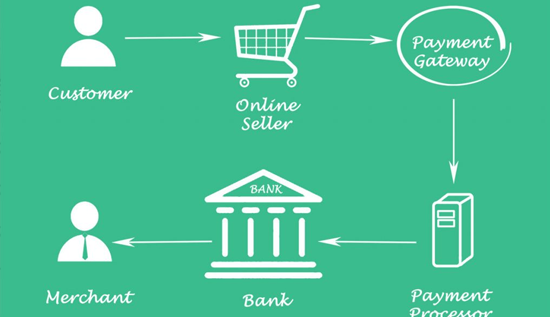
Payment Gateway Fees in Cambodia: Costs & Comparison
Compare payment gateway fees in Cambodia, transaction charges, processing costs, setup fees, and key factors businesses should consider when choosing a payment gateway.