How to Speed Up Your Laptop 2026 | Easy Fixes & Tips
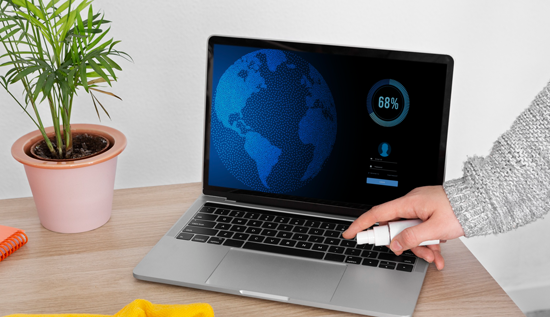
Learn how to speed up your laptop in 2026 with easy fixes and proven tips. Discover how to improve laptop performance, optimize gaming laptops, and boost speed without reinstalling Windows.
Introduction
If your laptop feels sluggish, freezes often, or takes forever to load apps, you're not alone. Many users experience performance issues over time—but the good news is you don’t need a brand-new device to fix it. With the right strategies, you can dramatically improve laptop performance and extend its lifespan.
In this guide, we’ll walk you through how to speed up your laptop using practical, beginner-friendly methods. Whether you’re using Windows or macOS, these tips will help you achieve a noticeable boost in speed and efficiency.
Why Laptops Slow Down Over Time
Before diving into solutions, it’s important to understand why laptops become slow:
- Too many startup programs
- Background apps consuming resources
- Outdated software or drivers
- Fragmented or full storage
- Malware or unnecessary files
- Overheating hardware
Addressing these issues is key to any laptop running slow fix strategy.
Restart Your Laptop Regularly
It sounds simple, but restarting your laptop clears temporary files, resets background processes, and refreshes system memory.
Why it works:
- Frees up RAM
- Stops unnecessary background tasks
- Improves system responsiveness
If your laptop is lagging, a quick restart is often the fastest way to speed up your laptop without reinstalling Windows.
Disable Startup Programs
Too many apps launching at startup can slow down boot time significantly.
On Windows:
- Open Task Manager
- Go to Startup tab
- Disable unnecessary programs
On Mac:
- Go to System Settings → Login Items
- Remove unwanted apps
This is one of the easiest laptop optimization tips to implement.
Clean Up Disk Space
A cluttered hard drive can slow down your system.
Steps to clean your laptop:
- Delete unused files and downloads
- Empty the recycle bin
- Uninstall unused apps
Built-in tools:
- Windows: Disk Cleanup
- Mac: Storage Management
Regular cleanup is essential to make laptop faster 2026.
Use the Best Software to Speed Up Laptop 2026
There are many tools designed to optimize performance automatically.
Recommended tools:
- CCleaner – cleans junk files
- Advanced SystemCare – boosts speed
- CleanMyMac – great for Mac users
These are among the best tools to clean and speed up PC, helping remove hidden clutter and improve efficiency.
Upgrade Your RAM (If Possible)
If your laptop struggles with multitasking, upgrading RAM can make a huge difference.
Benefits:
- Faster app switching
- Better performance in heavy tasks
- Reduced lag
This is one of the most effective ways to improve laptop performance.
Switch to an SSD
If you're still using a traditional hard drive (HDD), upgrading to a Solid State Drive (SSD) can transform your laptop.
Advantages:
- Faster boot times
- Quicker file access
- Improved overall speed
For anyone serious about how to speed up your laptop, this upgrade is a game-changer.
Update Your Operating System
Keeping your system updated ensures better performance and security.
Why updates matter:
- Fix bugs and performance issues
- Improve compatibility
- Enhance system stability
Whether you want to speed up Windows laptop or speed up MacBook, updates are essential.
Remove Malware and Viruses
Malicious software can significantly slow down your system.
What to do:
- Run a full antivirus scan
- Use trusted security software
- Avoid suspicious downloads
A clean system is crucial for any laptop running slow fix.
Manage Background Processes
Too many background apps can consume CPU and RAM.
On Windows:
- Use Task Manager to end unnecessary tasks
On Mac:
- Use Activity Monitor
Reducing background activity is a powerful way to speed up laptop without reinstalling Windows.
Adjust Visual Effects
Fancy animations can slow down older laptops.
On Windows:
- Go to System → Advanced Settings → Performance
- Choose “Adjust for best performance”
On Mac:
- Reduce motion in Accessibility settings
This simple tweak can noticeably improve laptop performance.
Optimize Browser Performance
Your browser might be the main reason your laptop feels slow.
Tips:
- Limit open tabs
- Disable unnecessary extensions
- Clear cache regularly
Browser optimization is often overlooked but critical for make laptop faster 2026.
Keep Your Laptop Cool
Overheating can throttle performance.
How to prevent overheating:
- Clean dust from vents
- Use a cooling pad
- Avoid using on soft surfaces
Temperature control plays a key role in laptop optimization tips.
Reinstall or Reset (Last Resort)
If nothing works, consider resetting your system.
Benefits:
- Removes deep system issues
- Clears clutter completely
- Restores original performance
However, many users prefer methods to speed up laptop without reinstalling Windows, which is why this should be your last option.
Optimize Gaming Laptop Performance
Gaming laptops require extra optimization due to high resource demands.
Tips to optimize gaming laptop performance:
- Update GPU drivers
- Lower in-game graphics settings
- Close background apps
- Enable high-performance mode
These steps ensure smoother gameplay and better overall performance.
Use Power Settings Wisely
Power settings affect performance.
On Windows:
- Choose “High Performance” mode
On Mac:
- Adjust energy saver settings
Optimizing power usage can help speed up Windows laptop and improve responsiveness.
Defragment Your Hard Drive (HDD Only)
If you’re using an HDD, defragmentation can improve speed.
Important:
- Do NOT defragment SSDs
This classic method still works for older systems needing a laptop running slow fix.
Disable Unnecessary Services
Some system services run in the background without providing value.
Steps:
- Use system configuration tools
- Disable non-essential services
This advanced tip can help improve laptop performance further.
Keep Drivers Updated
Outdated drivers can cause performance issues.
Focus on:
- Graphics drivers
- Network drivers
- Chipset drivers
Driver updates are essential to make laptop faster 2026.
Conclusion
Knowing how to speed up your laptop doesn’t require technical expertise—just the right approach. By following these proven methods, you can:
- Improve laptop performance
- Fix slow system issues
- Extend your device’s lifespan
- Avoid costly upgrades
From cleaning your system to upgrading hardware, these laptop optimization tips will help you achieve a faster, smoother experience in 2026.
Start with the simple fixes, and gradually apply advanced techniques if needed. With consistent maintenance, your laptop can stay fast and efficient for years to come.
More Articles
 30 May 2026
AI Phishing Scams Explained – How to Avoid AI Attacks
AI phishing attacks use advanced tactics to steal data. Spot warning signs and reduce your risk from evolving cyber threats.
 29 May 2026
Cloud Storage Comparison 2026 – Cheapest & Most Secure
Best cloud storage for personal use and business in 2026 with full comparison of security and performance across major providers.
 28 May 2026
How to Protect Your Passwords in the AI World
How to protect your passwords in the AI era with stronger passphrases, secure apps, and online safety methods.
 27 May 2026
10 AI Mistakes Destroying Your Productivity
Discover the 10 AI mistakes destroying your productivity in 2026. Learn common AI mistakes people make, ChatGPT mistakes, AI prompt errors, and practical AI safety tips.