Core Web Vitals Explained: Metrics & How to Fix Them
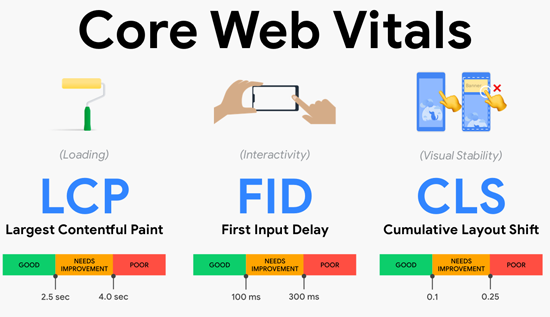
Learn what Core Web Vitals are, how LCP, INP, and CLS affect user experience and SEO, and practical ways to fix performance issues and improve your website.
Website speed and performance are important parts of a successful online experience. Visitors expect web pages to load quickly, respond smoothly when they click buttons, and display content without unexpected movement. When a website performs poorly, users may leave before reading an article, completing a form, or purchasing a product.
Google introduced Core Web Vitals to help website owners measure important aspects of the user experience. These metrics focus on three main areas: loading performance, interactivity, and visual stability. They provide practical information that developers, website owners, and SEO professionals can use to identify performance problems and improve their websites.
Understanding Core Web Vitals is particularly important for technical SEO. A website may contain useful information and target the right keywords, but technical performance problems can make it difficult for visitors to enjoy that content. Improving page experience can help create a more accessible, reliable, and user-friendly website.
This guide covers Core Web Vitals explained in simple language, the three main metrics, their recommended thresholds, common performance problems, testing tools, and practical solutions for fixing issues reported by Google Search Console.
Whether you manage a WordPress blog, an online store, a business website, or a content platform, learning how to improve Core Web Vitals can help you build a better experience for your visitors.
What Are Core Web Vitals?
Core Web Vitals are a set of performance metrics developed by Google to evaluate important aspects of the real-world user experience on a web page. They measure how quickly the main content appears, how quickly a page responds to user interactions, and whether visible elements move unexpectedly.
The three current Core Web Vitals metrics are:
- Largest Contentful Paint (LCP): Measures loading performance.
- Interaction to Next Paint (INP): Measures responsiveness to user interactions.
- Cumulative Layout Shift (CLS): Measures visual stability.
Each metric evaluates a different part of the browsing experience. Together, they help website owners understand whether visitors can access content quickly, interact with the page without frustrating delays, and read or navigate without unexpected layout changes.
For example, imagine someone visits a blog on a mobile phone. The page takes five seconds to display its main article image, the navigation menu responds slowly, and an advertisement pushes the text down while the visitor is reading.
These problems affect different Core Web Vitals metrics. The delayed image can result in poor LCP, the slow menu can contribute to poor INP, and the unexpected movement can increase CLS.
The purpose of Core Web Vitals optimization is to identify and correct these problems rather than simply make a website look fast during a single test.
What are Core Web Vitals and why do they matter?
Core Web Vitals matter because they help website owners understand how visitors experience their pages in real-world conditions.
Their importance includes:
- User experience: Faster, more responsive pages are generally easier to use.
- SEO: Google uses page experience signals, including Core Web Vitals, within its broader ranking systems.
- Engagement: A smoother experience can make it easier for visitors to read, navigate, and interact with content.
- Conversions: Reliable pages can reduce unnecessary friction during actions such as submitting a form or completing a purchase.
- Mobile usability: Performance testing helps identify problems affecting visitors on mobile devices and slower networks.
However, good Core Web Vitals scores do not guarantee higher rankings. Google considers many factors, including content relevance, quality, and the user's search intent. Performance improvements should support a wider SEO strategy rather than replace useful content and sound technical SEO practices.
Understanding the Three Core Web Vitals Metrics
Before fixing performance issues, you need to understand what each metric measures and how Google evaluates it.
The following table summarizes the recommended thresholds.
| Metric | What it measures | Good | Needs improvement | Poor |
| LCP | Loading performance | 2.5 seconds or less | Over 2.5 to 4 seconds | Over 4 seconds |
| INP | Interaction responsiveness | 200 milliseconds or less | Over 200 to 500 milliseconds | Over 500 milliseconds |
| CLS | Visual stability | 0.1 or less | Over 0.1 to 0.25 | Over 0.25 |
These thresholds are evaluated at the 75th percentile of page visits. In simple terms, the assessment looks at the experience of most visitors rather than relying on one unusually fast or slow visit. Mobile and desktop performance can differ, so it is important to review them separately where data is available.
2.1 Largest Contentful Paint (LCP)
Largest Contentful Paint measures how long it takes for the largest qualifying image, video poster, or block of text visible in the initial viewport to render.
In simple terms, LCP helps answer this question: How quickly does the main content appear on the screen?
Suppose a visitor opens an article about website security. The page background and navigation appear immediately, but the large headline image takes four seconds to load. The visitor may feel that the page is slow even though some elements are already visible.
A good LCP score is 2.5 seconds or less.
Common causes of poor LCP include:
- Slow server response times.
- Large, uncompressed images.
- Render-blocking CSS and JavaScript.
- Slow loading of fonts or other essential resources.
- Poor caching configuration.
- Excessive redirects.
- Delayed discovery of the main image or other important content.
The correct solution depends on which part of the loading process is slow. Reducing an image's file size may help, but it will not fully solve an issue caused by a slow server or delayed resource discovery.
For this reason, effective Core Web Vitals optimization starts with identifying the actual LCP element and understanding when its resource begins loading.
2.2 Interaction to Next Paint (INP)
Interaction to Next Paint measures how responsive a page is when visitors interact with it. It considers interactions such as clicking a button, tapping a menu, or using a keyboard control, and evaluates the delay until the browser presents the next visual update.
A good INP score is 200 milliseconds or less.
Consider a visitor clicking a navigation menu. If the menu opens immediately, the website feels responsive. If nothing happens for half a second or longer, the visitor may click again or assume that the page is broken.
Common causes of poor INP include:
- Long-running JavaScript tasks.
- Too much JavaScript executing on the main thread.
- Expensive event handlers.
- Large rendering updates after a click.
- Excessive third-party scripts.
- Complex interfaces that require substantial processing.
INP replaced First Input Delay (FID) as a Core Web Vital in March 2024. FID measured the delay before the browser began processing the first interaction, while INP evaluates responsiveness more broadly across interactions during a visit. Therefore, modern performance guides should focus on INP rather than treating FID as a current Core Web Vital.
Improving INP usually requires examining how JavaScript, event handlers, and page rendering behave when users interact with the website.
2.3 Cumulative Layout Shift (CLS)
Cumulative Layout Shift measures unexpected visual movement during a page's lifetime.
A layout shift occurs when a visible element changes position without the visitor initiating that movement. CLS quantifies the impact of these unexpected changes.
A good CLS score is 0.1 or less.
Imagine that someone starts reading a paragraph on a news website. An image loads above the paragraph without reserved space, pushing the text downward. The reader loses their place and must find the paragraph again.
This is a typical example of a layout stability problem.
Common causes of poor CLS include:
- Images without specified dimensions.
- Videos or embedded content without reserved space.
- Advertisements that expand after the page loads.
- Web fonts that cause text to change size or layout.
- Dynamically inserted banners.
- Content added above existing content after rendering.
Unexpected movement can also cause visitors to click the wrong link or button.
The main goal of CLS optimization is to make the page layout predictable. Reserve the necessary space for images, advertisements, and embedded content, and avoid inserting new content above existing material unless the change is triggered by the user's action.
How Core Web Vitals Affect SEO
Core Web Vitals SEO refers to the relationship between website performance, user experience, and Google's search ranking systems.
Google recommends achieving good Core Web Vitals results because they contribute to a positive page experience. However, these metrics are not a shortcut to the top of search results. Relevant, helpful content and other ranking factors remain important.
A website with excellent performance but poor content may not satisfy a searcher's needs. Likewise, a website with valuable information can still benefit from improving its loading speed, responsiveness, and visual stability.
Why technical performance matters for search visibility
Core Web Vitals can support an SEO strategy in several ways.
1. They help identify technical problems. A poor LCP score may reveal slow hosting, while poor INP can indicate excessive JavaScript. Resolving these problems improves the technical quality of the website.
2. They support a better mobile experience. Visitors often access websites using mobile devices with different processing power and network conditions. Performance testing can reveal issues that desktop-only testing misses.
3. They can reduce friction during navigation. Pages that load reliably and respond quickly make it easier for visitors to explore related articles, products, and services.
4. They complement content optimization. A useful article with a clear structure, relevant headings, and fast loading provides a stronger overall experience than a page that makes visitors wait unnecessarily.
5. They help guide development priorities. Instead of guessing which technical changes matter, website owners can use performance reports to focus on measurable problems.
Does passing Core Web Vitals guarantee better rankings?
No. Passing the Core Web Vitals assessment does not guarantee improved rankings, more traffic, or a particular position in Google Search.
Google evaluates many signals to determine which pages best answer a search query. Core Web Vitals are one part of the broader page experience picture.
The practical approach is to treat performance as a quality improvement goal. Publish helpful content, maintain a crawlable website, optimize internal links, use descriptive titles, and improve Core Web Vitals together.
Core Web Vitals Testing Tools You Should Know
Before changing your website, collect reliable performance data. Different Core Web Vitals testing tools serve different purposes, and using more than one can help you understand both the symptoms and their causes.
![How to Create an SEO Strategy [Template Included]](/storage/uploads/flP3P4PAIUKxREjtqmTolLN5uuneCNVdbEwNuYJu.png)
1. Google PageSpeed Insights
PageSpeed Insights analyzes a URL and, when available, provides both real-user field data and simulated laboratory test results. It highlights LCP, INP-related diagnostics, CLS, and potential performance improvements.
Best for: Checking an individual page and finding opportunities to improve performance.
Test a page with PageSpeed Insights
2. Google Search Console
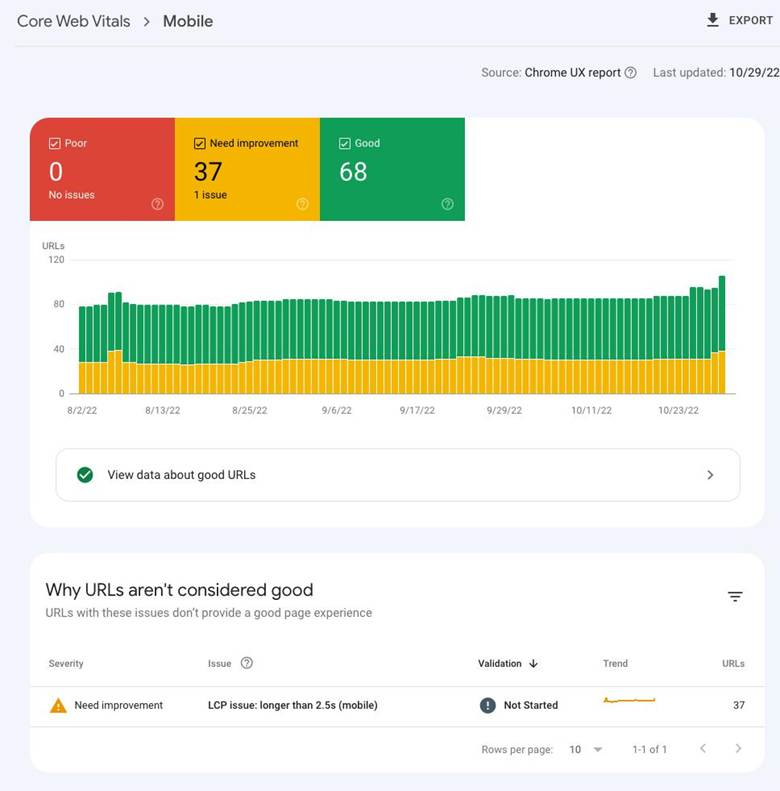
The Core Web Vitals report groups URLs according to their field performance. It helps identify groups of pages that need improvement and allows you to monitor issues over time.
Best for: Site-wide SEO monitoring and tracking groups of affected URLs.
3. Lighthouse
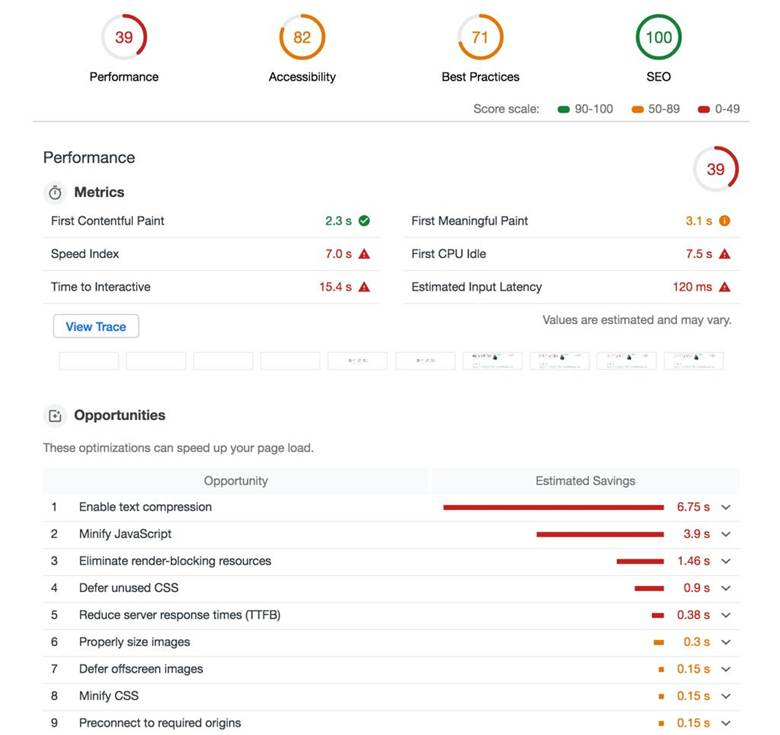
Lighthouse performs laboratory audits of page performance and other quality areas. It provides diagnostic information about images, JavaScript, render-blocking resources, and related issues.
Best for: Testing changes during development and investigating potential causes of slow loading.
Read the Lighthouse documentation
4. Chrome DevTools
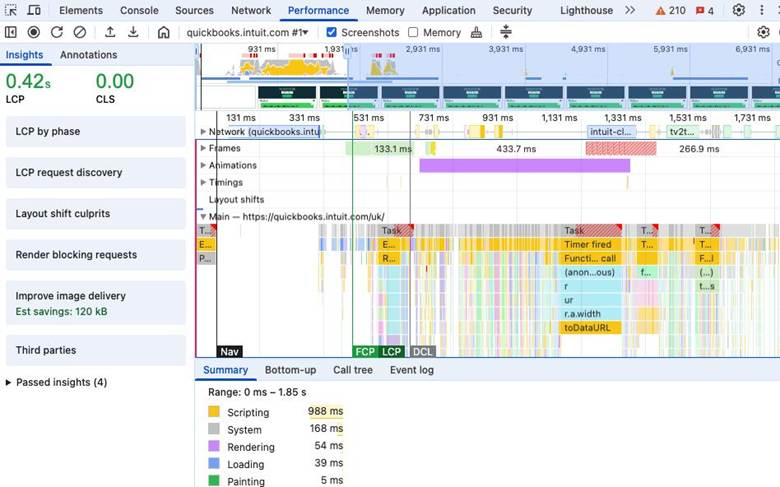
Chrome DevTools helps developers inspect page rendering, JavaScript execution, network requests, and layout shifts. Its Performance panel can help locate long tasks and slow interactions.
Best for: Debugging complex problems that require a closer technical investigation.
Learn about the Performance panel
These tools complement one another. PageSpeed Insights and Search Console help you understand measured performance, while Lighthouse and DevTools help investigate possible causes.
Field data vs. laboratory data
Understanding the difference between field data and laboratory data is essential.
| Feature | Field data | Laboratory data |
| Source | Measurements from real users | A controlled test environment |
| Main purpose | Understand actual user experience | Diagnose potential problems |
| Conditions | Different devices, networks, and interactions | Simulated or controlled conditions |
| Common tools | Search Console, PageSpeed Insights | Lighthouse, Chrome DevTools |
| Main limitation | May be unavailable for low-traffic pages | May not reflect every real-world condition |
Field data is especially important because the Core Web Vitals assessment reflects real-user experiences. Laboratory tests are valuable for diagnosis, but a single Lighthouse score does not establish that a page passes the field-based assessment.
Lighthouse does not directly measure INP in a normal lab run because it cannot reproduce the full range of real user interactions. Total Blocking Time (TBT) is a useful diagnostic indicator for main-thread blocking, but it is not a replacement for field-measured INP.
How to Improve Core Web Vitals: Fixing LCP Issues
Improving Largest Contentful Paint usually involves making the main visible content available sooner. The right solution depends on whether the delay comes from the server, resource discovery, downloading, or rendering.
Step 1: Improve server response time
A slow server can delay the entire loading process. If the browser takes too long to receive the initial HTML, other important resources may also start loading late.
Potential improvements include:
- Choose reliable hosting with sufficient resources.
- Enable server-side or page caching where appropriate.
- Reduce unnecessary database queries.
- Optimize backend code and expensive requests.
- Use a content delivery network (CDN) when it benefits your audience.
- Reduce unnecessary redirects.
If your website receives visitors from several countries, a suitable CDN may help deliver static resources from locations closer to users.
Step 2: Optimize the main image
Large hero images are common causes of poor LCP.
To improve image performance:
- Resize images to dimensions appropriate for their display.
- Compress images while maintaining acceptable visual quality.
- Use modern formats such as WebP or AVIF where supported.
- Provide responsive image sizes so mobile devices do not download unnecessarily large files.
- Avoid lazy-loading the main image when it is the LCP element.
Lazy loading is useful for images farther down the page because they do not need to load immediately. However, delaying an image that appears at the top of the page can make LCP worse.
Where appropriate, make the main image discoverable early in the HTML and consider a preload only when testing shows it is beneficial.
Step 3: Reduce render-blocking resources
CSS and JavaScript can prevent a browser from displaying important content until certain files have been processed.
Review the resources that block rendering and determine whether they are essential.
You may be able to:
- Remove unused CSS.
- Minify CSS and JavaScript.
- Defer non-critical JavaScript.
- Load non-essential scripts later.
- Inline a small amount of critical CSS when appropriate.
- Split large stylesheets into critical and non-critical parts.
Avoid removing code simply to improve a score. Every change should preserve the website's functionality and accessibility.
Step 4: Improve font loading
Web fonts can delay text rendering or cause visible changes after a fallback font is replaced.
Use a limited set of font families and weights. Consider hosting fonts efficiently, reducing unnecessary font files, and using an appropriate font-display strategy.
Preloading a critical font may help in some cases, but excessive preloading can compete with more important resources.
Step 5: Find the actual source of the delay
Use PageSpeed Insights to inspect LCP diagnostics and the LCP element. If the server responds quickly but the main image starts downloading late, the problem may be resource discovery rather than hosting.
If the image downloads quickly but appears late, investigate rendering delays, CSS, and JavaScript.
The key principle: Fix the slowest part of the LCP process instead of applying every possible speed optimization.
How to Fix INP Issues and Improve Website Responsiveness
A website can load quickly but still feel slow when visitors try to use it. For example, a page may display its content immediately, yet a navigation menu freezes when clicked because JavaScript is doing too much work.
Improving INP requires focusing on the time between a user's interaction and the next visual update.
Step 1: Break up long JavaScript tasks
JavaScript tasks that run for too long can block the browser's main thread. While the main thread is busy, the browser may struggle to respond to clicks, taps, and keyboard input.
Developers can improve responsiveness by:
- Breaking large tasks into smaller tasks.
- Removing unnecessary JavaScript.
- Deferring non-essential scripts.
- Using web workers for suitable background computations.
- Avoiding expensive synchronous operations.
- Prioritizing work needed for the next visible update.
For example, a script that processes a large list of products after a visitor selects a filter should not unnecessarily block the interface. Smaller tasks and efficient updates can help the browser respond sooner.
Step 2: Optimize event handlers
Event handlers execute when users interact with elements such as buttons, menus, and search fields.
Poorly optimized handlers can trigger expensive calculations, repeated DOM updates, or unnecessary network requests.
To improve them:
- Identify which interaction feels slow.
- Inspect the related event handler in Chrome DevTools.
- Measure how much time the handler takes.
- Remove unnecessary calculations and repeated work.
- Reduce the amount of content that must be updated.
- Test the interaction again.
For example, a search field that filters thousands of records on every keystroke may benefit from more efficient filtering, sensible debouncing, or moving suitable work away from the main thread.
Step 3: Reduce third-party scripts
Analytics tools, advertising systems, chat widgets, embedded videos, and marketing scripts can consume processing time.
Review which scripts your website actually needs. Remove outdated integrations and delay loading non-essential tools until they are needed.
Do not remove important security or accessibility features merely to improve performance. Instead, prioritize essential functionality and test the impact of each change.
Step 4: Avoid unnecessary rendering
Large interface updates can make interactions slower. This can happen when a small action causes an entire page section to re-render.
Use efficient rendering patterns, update only the necessary components, and avoid expensive layout calculations.
For websites built with JavaScript frameworks, developers should also review component behavior, state updates, and unnecessary repeated rendering.
Step 5: Test real interactions
Laboratory tools can reveal likely problems, but field data is necessary to understand how users experience the website.
Test common interactions, including:
- Opening and closing navigation menus.
- Expanding FAQ sections.
- Searching and filtering content.
- Opening product details.
- Submitting forms.
- Using interactive mobile controls.
These tests can help you find the parts of the website that need attention first.
How to Fix CLS Issues and Prevent Layout Shifts
CLS optimization focuses on keeping page content stable while resources load and the interface changes.
Reserve space for images and videos
Always define image dimensions where practical. For example:
<img
src="article-image.webp"
width="1200"
height="675"
alt="Website performance dashboard"
>
The browser can use these dimensions to calculate the image's aspect ratio before the image finishes downloading. This reduces the chance that surrounding content will move unexpectedly.
For responsive images, CSS can control the displayed size while preserving the aspect ratio.
Reserve space for advertisements and embeds
Advertisements and third-party embeds can change size after the page has loaded.
Where possible, reserve a suitable area for these elements before their content appears. This is particularly important for pages with multiple advertising placements.
The reserved space should reflect the expected content size across different screen widths. A layout that works on desktop may still shift on a narrow mobile screen.
Avoid inserting content above existing text
A banner, recommendation box, or notification inserted at the top of the page can push existing content downward.
If the content is not triggered by a user action, consider reserving space in advance or placing the element where it will not unexpectedly displace important content.
User-triggered changes, such as opening an accordion, are generally different from unexpected layout shifts, although the resulting interaction should still feel predictable.
Optimize font behavior
Some fonts have different dimensions from the fallback fonts displayed while they load. When the replacement font appears, text may wrap differently and shift other elements.
To reduce this risk:
- Use fewer font families and weights.
- Choose fallback fonts with similar dimensions.
- Load important fonts efficiently.
- Consider font metric overrides when appropriate.
- Avoid unnecessary changes to text size and spacing after rendering.
Review dynamic content
Content that changes after the initial page load can create visual instability.
Check for delayed cookie notices, expanding navigation elements, dynamically inserted related articles, and widgets that resize after loading.
The objective is not to prevent all movement. It is to prevent unexpected movement that interferes with the user's experience.
How to Fix Core Web Vitals Issues in Google Search Console
Google Search Console is one of the most useful tools for identifying Core Web Vitals problems across a website.
The report groups pages with similar issues, allowing you to identify patterns instead of testing every URL separately.
Follow this workflow to investigate and resolve reported problems.
Open the Core Web Vitals report.
Sign in to Google Search Console, select the correct website property, and open the Core Web Vitals section. Review the mobile and desktop reports separately.
Identify the affected metric.
Determine whether the reported issue concerns LCP, INP, or CLS. Check whether the affected URLs are rated poor or need improvement.
Review the affected URL groups.
Look for pages that share a template, such as blog posts, category pages, or product pages. A shared template problem can affect many URLs.
Test representative pages.
Use PageSpeed Insights to examine representative URLs and investigate the elements contributing to the problem. Remember that individual test results may differ from field data.
Fix the underlying cause.
Make changes appropriate to the affected metric. For example, optimize the main image for LCP, reduce main-thread blocking for INP, or reserve space for dynamic content to improve CLS.
Deploy and test the changes.
Test the affected pages again, including on mobile devices. Make sure the improvements have not introduced new usability or functionality problems.
Request validation when available.
Return to Search Console and use the report's validation option if it is available for the issue. Google will check whether the reported problem has been resolved.
Why do Core Web Vitals reports sometimes take time to improve?
Search Console relies on real-user field data, not just the result of a single test. Its report may continue showing an issue after you update your website because the available measurements reflect a broader period of user activity.
A page may also perform differently across devices, networks, and browsing conditions.
For these reasons, do not expect the report to change immediately after deploying a fix. Continue monitoring field performance and investigate recurring problems rather than relying only on a successful laboratory test.
Google's documentation explains how the Core Web Vitals report helps site owners identify and monitor page performance issues.
A Practical Core Web Vitals Optimization Checklist
Use this checklist to organize your improvement work and track the main tasks.
Performance improvement checklist
0 of 7 complete
Measure current performance
Review Search Console and PageSpeed Insights.
Improve LCP
Optimize the main image, server response, and critical resources.
Improve INP
Reduce long JavaScript tasks and optimize event handlers.
Improve CLS
Set image dimensions and reserve space for dynamic content.
Review mobile performance
Test common pages and interactions on mobile devices.
Retest after deployment
Compare results and check that functionality still works.
Monitor field data
Review Search Console regularly and validate fixes when possible.
You do not need to complete every task at once. Start with the issues affecting the largest number of important pages, then address smaller problems as resources allow.
Common Core Web Vitals Mistakes to Avoid
Some optimization practices produce little benefit because they focus on scores rather than the underlying user experience.
Optimizing only for desktop: Mobile devices may experience slower loading and responsiveness. Always check mobile performance.
Chasing a perfect Lighthouse score: Laboratory results are useful, but they do not replace real-user field measurements.
Lazy-loading every image: Images below the fold can benefit from lazy loading, but delaying the main above-the-fold image may hurt LCP.
Ignoring third-party scripts: External scripts can affect loading, responsiveness, and layout stability.
Making changes without measuring: Unnecessary code changes can introduce new problems. Record baseline performance and test each important change.
Expecting instant SEO results: Improving Core Web Vitals does not guarantee ranking changes. Evaluate performance improvements alongside content quality, indexing, and other SEO factors.
Conclusion
Core Web Vitals provide a practical framework for understanding how visitors experience a website. The three main metrics measure loading performance through LCP, responsiveness through INP, and visual stability through CLS.
Successful Core Web Vitals optimization starts with measurement. Use Google Search Console and PageSpeed Insights to identify problems, then investigate their causes with tools such as Lighthouse and Chrome DevTools.
Prioritize faster delivery of important content, efficient JavaScript execution, and predictable page layouts. Test changes on mobile and desktop, monitor real-user data, and address recurring issues systematically.
Most importantly, remember that technical performance and useful content work together. A website that answers visitors' questions, loads reliably, responds smoothly, and avoids unexpected layout changes provides a better foundation for long-term SEO success.
More Articles
 23 Oct 2026
Website Audit Score: How to Check and Improve It
Check your website audit score, identify SEO issues, improve technical performance, site health and search visibility.
 21 Oct 2026
Low-Value Content: How to Identify and Fix It
Identify low-value content, improve content quality and fix SEO issues with practical strategies to boost website usefulness.
 20 Oct 2026
Session Hijacking: How It Works and How to Prevent It
Learn what session hijacking is, how session cookie theft works, common attack signs, and effective prevention strategies to protect accounts and web applications.
 16 Oct 2026
Orphan Pages in SEO: How to Find and Fix Them
Identify orphan pages in SEO and apply practical strategies to improve internal linking and discoverability.