Best Password Managers: Free & Secure Options
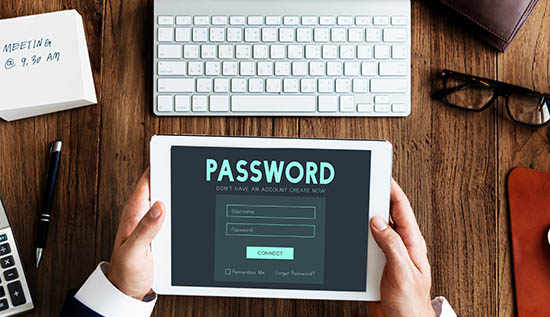
Compare the best password managers, including free and secure options, with key features and practical security tips.
Passwords are still one of the easiest ways for hackers to get into email, banking platforms, social media, cloud services and personal accounts. Problem is that people have to remember a lot of long, different passwords for a lot of different accounts.
It might be convenient to use the same password on several websites, but if one service has a data breach, hackers could use the stolen credentials on other sites.
That is where the best password managers can make a significant difference. A password manager is meant to keep login information safe and help people make strong, unique passwords without having to remember all of them.
Depending on the service, many can also keep notes safely, as well as payment information, personal information and other private data.
But picking a password manager isn't just about picking the service with the most features. Users should think about things like encryption, account recovery, device compatibility, password-generating tools, authentication options, privacy policies, pricing and the history of security at the provider.
People who only need to store basic passwords may benefit from free plans. Paid plans, on the other hand, may offer family sharing, advanced security tracking, business management or support for more devices also.
In 2026, there are many options available, ranging from simple browser-based password storage to dedicated security applications. This makes comparing the best password managers 2026 options particularly important for people who want practical security without unnecessary complexity.
This article talks about what password managers do, which features are the most important, the differences between free and paid services and how to pick the best application. It also gives real-life examples of how password managers can keep individuals and small business enterprises safer.
What Is a Password Manager and Why Do You Need One?
A password manager is software that securely stores passwords and other sensitive credentials in an encrypted vault. People who want to access their vault usually remember one main password or use another approved authentication method instead of remembering dozens of different passwords.
After unlocking the vault, the password manager can fill in your usernames and passwords instantly when you go to websites or open apps that support it. Additionally, when you sign up for many services, they can make safe passwords for you.
By not letting you reuse passwords, this method fixes one of the biggest problems with regular password security.
Let's say someone uses the same password for their email, stores, social networks and work-related accounts. Anytime an attacker gets that password from a website that has been hacked, they might try to use it somewhere else also. Maintaining unique passwords for each account is easy when you use a password manager.
Key benefits of using a password manager
The best password managers typically provide several useful security and convenience features:
- Unique password generation: Automatically creates random passwords that are difficult to guess.
- Encrypted storage: Protects stored credentials while they are stored in the password vault.
- Autofill: Reduces the need to manually type passwords.
- Password auditing: Some services identify weak, reused, or compromised passwords.
- Synchronization: Allows credentials to be available across supported devices.
- Secure notes: Provides a place for sensitive information that does not fit into a normal login.
- Two-factor authentication support: Some managers can work with authentication codes or security keys.
- Data sharing: Family and business plans may allow controlled credential sharing.
A password planner can also indirectly boost safety by making it easier to follow good safety habits. If it only takes seconds to make a new 20-character password, people will be less likely to use an old one.
How do you know if a password manager is safe?
One of the first things you should look at is security. Look for providers that make their encryption architecture, authentication methods, security policies and independent security reviews easy to understand.
A lot of modern password managers use a zero-knowledge architecture or something similar. This means that the provider isn't just able to see what's in the encrypted vault of a user.
However, each service has its own way of doing things, so users shouldn't just assume that all password managers work the same way they should look at the provider's instructions to see how each one works.
Also, your master password is very important, because password managers can help reduce risks associated with password reuse and credential theft, if the vault is locked with a master password, that password should be unique and hard to figure out.
So, having a strong password manager doesn't mean you don't need to be careful with your protection. Users are instead given better tools to keep them up to date.
Read More: Credential Theft: How Hackers Steal Your Passwords
How to Choose the Best Password Manager
There is no single password manager that is perfect for every user. The best password manager software depends on your devices, budget, technical requirements and the type of information you want to protect also. Before choosing a service, compare the following areas.
1. The safety and encryption: Start with how the service company handles security. Find out what you need to know about the company's encryption, authentication, security checks and how they handle private data.
A reliable service provider should give you proof of how your vault is protected. Check to see if the service offers any other ways of logging in, like: authentication with two factors, applications for authentication, keys for passing, keys for hardware security, biometric unlocking on devices that can do it. These features can add extra security on top of the main password.
2. Making a password: It should be easy to make strong passwords with a good password generator. Try to find a generator that can: weird, long passwords, capital letters and small letters, amounts, signs and symbols, key phrases and different passwords for every site.
3. Device and browser compatibility: Take a look at where you log in. Cross-platform support can be very useful if you often switch between Windows, macOS, Android and iOS.
Browser add-ons are also helpful because they let the password manager fill in your information automatically, so you don't have to open the app every time. Before you subscribe, make sure it works with your browsers and devices, especially if they aren't very common.
4. Free versus paid features: Some of the best free password managers can provide enough functionality for individual users. However, free plans often have limitations also.
Depending on the provider, premium plans may add: unlimited device synchronization, family sharing, emergency access, advanced security reports, larger secure-storage limits, business administration, priority support and dark-web or breach monitoring. A free plan can therefore be a good starting point, but users should compare its restrictions carefully.
5. Ease of use: Security tools need to be practical. If a password manager is frustrating to use, people may stop using it or return to insecure password habits.
Look for an interface that makes it easy to: import existing passwords, create new credentials, generate strong passwords, search the vault, autofill login forms, update compromised passwords and access accounts from different devices.
6. Recovery options: Account recovery deserves special attention. If you forget your master password, some services have limited ways to restore access because of their security architecture. Review the provider's recovery documentation before moving your credentials into a new vault.
Best Password Managers: Free and Paid Options to Consider
The best password managers available today vary considerably in their pricing, design, features and focus on users also. Don't just pick a service based on how popular it is; instead, look at what it has to offer and how well it fits your needs.
1. Bitwarden up: A lot of people know Bitwarden for its open-source password manager that has both free and paid versions. Its free version may appeal to individuals who want to store passwords, make new passwords and access them from any device that supports it without having to pay for a subscription right away.
Possible benefits include: parts that are open source, making a password, add-ons for browsers, useful mobile apps, applications for desktops, aunctionality to protect vaults and free and paid plans.
2. 1Password: 1Password puts a lot of effort into making it easy to use, adding security features, and helping individuals, families and businesses also. It has tools that are meant to help users keep passwords and other private data in a safe place.
Features that might be useful include: making a password, safe storage, integration with browsers, plans for the family, management of business and features for security alerts and monitoring.
People who are thinking about getting 1Password should look at the current plans and features that are supported. This is because prices and features can change over time.
3. Dashlane: Dashlane is another well-known password manager that lets you store passwords, have them automatically filled in, make new passwords and do other security-related things. It might be appealing to people who want a polished interface with safety features.
Based on the plan, users may be able to use tools like: monitoring the health of passwords, making a password, safe sharing, fill in automatically, keeping personal information safe, alerts for security.
4. Proton Pass: Proton Pass is part of Proton's larger community of privacy-focused products also. For people who already use other Proton services, having password management built into the same ecosystem could be helpful. It can store passwords and make new ones.
Depending on the plan it can also support multiple devices and add other privacy-focused features.
5. Passwords for Apple: Password management that is built into Apple products can be useful for people who mostly use Apple products. The Passwords app in newer Apple operating systems lets you manage your passwords and your passwords can be synced across all of your devices within Apple's ecosystem.
6. Manager for Google Passwords: Google Password Manager is part of Google's ecosystem and can be useful for Chrome and Android users. It can save passwords, make strong passwords, and fill in login information automatically on websites and devices that support it.
Best Free Password Managers vs. Paid Password Managers
One thing that might be different between free and paid password managers is not necessarily whether one is safer than the other. Features, limits, help and ease of use are often what make them different. If you are only in charge of a few personal accounts, a free choice might be all you need.
Premium features may become more useful for people who have to keep track of hundreds of logins across multiple devices or who share accounts with family members.
When free password managers might work: You are in charge of people's accounts, you want a simple way to store passwords, you need to make a password, you don't have a lot of money, you use one environment most of the time and don't worry about running your family or business.
When it might be better to use a paid password manager:
You need to share more, you are in charge of many users, you need help with business administration, you need more features for tracking, you need more safe storage space, you use a lot of different device ecosystems, you need more advanced ways to heal or get help in an emergency, you want basic password storage, you need password generation, you have a limited budget, you primarily use one ecosystem, you do not need family or business administration.
When it might be better to use a paid password manager:
You need to share more, you are in charge of many users, you need help with business administration, you need more features for tracking, you need more safe storage space, you use a lot of different device ecosystems, you need more advanced ways to heal or get help in an emergency.
When comparing the best password managers in 2026, don't think that the most expensive plan will always give you the best experience also. Make a list of the things you really need instead.
A good way to compare things is:
- Step 1. Make a list of all your gadgets.
- Step 2: Make a list of about how many accounts you are in charge of.
- Step 3: Decide if you need to share with family or a team.
- Step 4: Check to see if a free plan meets those needs.
- Step 5: Read the security documentation from the service provider.
- Step 6: Look at the current prices and limits on the membership.
- Step 7: Try out the interface before you move all of your passwords.
Evidence Guide: What Should You Check Before Trusting a Password Manager?
Strong password practices are also an important part of efforts to prevent data breaches and protect sensitive information. Security claims can sound amazing, but users shouldn't just believe what the company says; they should also look for proof. When researching secure password managers, examine the following evidence.
1. Security checks by outside experts: Find out about audits or reviews that are done by outside parties. These don't promise that a product will never have a security problem but they can tell you more about how a company's systems and controls have been checked out.
2. Access to open source: Open-source software lets developers and researchers look at source code that is available to the public. However, just because a product is open source doesn't mean it's safe also. Think of it as a part of a bigger evaluation.
3. Security documents that are easy to read: A service company should make it easy to understand important security ideas. Look for paperwork that talks about data storage, account recovery, encryption, identification and how to handle a breach.
4. History of security: Find out if the service company has had any security incidents that have been made public. More importantly, look at how the company told people about what happened and what steps were taken afterward also.
5. Updates often: Threats to security are always changing. A password manager should get regular security changes and keep up with new browser extensions and apps that work with it.
Read More: How to Prevent Data Breaches: Essential Security Tips
Example 1: A single user
Let's say a worker has 60 online accounts, such as email, banking, cloud storage, social media, software for managing projects, client platforms and so on. The writer used the same six passwords for all of those accounts before.
Strong, unique passwords are also an important part of mobile banking security, particularly for accounts containing sensitive financial information.
They can make different passwords for each service after installing a password manager. The password manager keeps track of the information and fills it in for you automatically. There is a smaller chance that the freelancer's other accounts will be hacked if one website's password is leaked, since each account has its own unique password.
Example 2: A small business
Think about a small business with eight workers that needs to use a number of shared business services. The business doesn't have to send passwords through chat apps; instead, it can use a password-management system that allows for controlled sharing and user management.
The credentials employees need can be given to them without having to see or write every password by hand also. When a worker leaves the business, the bosses can take away their access. This shows that managing passwords isn't just a personal convenience; it can also be used as part of an organization's overall access-control plan.
How to Use a Password Manager Safely
Putting in a password manager is just the start. Also, users should set it up correctly. First, make a strong, one-of-a-kind master password. Don't use a password you've already used somewhere else. Next, turn on any security features that are available.
Advice on what to do
- When it's enabled, turn on multi-factor authentication.
- Make a master password that is unique.
- For each important account, make a unique password.
- Put email, banking, cloud files and work accounts at the top of your list.
- Protect details about recovery.
- Updating old or used passwords is important.
- Remove passwords that aren't needed.
- Keep the app that manages passwords up to date.
- Watch out for fake password manager browser add-ons.
- Before entering private information, check the website addresses.
- Also, you should keep the gadgets that have your password manager safe.
If someone already has access to your unlocked computer or phone, even a safe vault won't completely protect you.
So, the following should be part of device security: Locks the screen, updates for the operating system, when it makes sense, security software, encrypting the device, safe ways to use Wi-Fi, being aware of phishing and authentication with multiple factors.
If passkeys or hardware security keys are available, you might want to use them for very important accounts.
Choosing the Best Password Manager App for Your Needs
The best password manager app depends on the way you use technology and password manager can also complement good mobile security practices by helping you maintain unique passwords across your accounts.
- For individual users: Focus on simplicity, strong password generation, secure storage and affordable pricing.
- For families: Look for secure credential sharing, multiple-user support, account recovery options and family plans.
- For professionals: Cross-platform support, browser integration, secure sharing and reliable synchronization can be especially important.
- For small businesses: Look for administrative controls, employee management, access permissions, sharing controls, reporting and the ability to remove access when employees leave.
- For privacy-focused users: Examine the provider's encryption architecture, data-collection practices, transparency and security documentation.
The goal is not simply to select a popular product. It is to choose a service whose security model and features match your situation.
Read More: Mobile Security in Cambodia: How to Protect Your Phone
Conclusion
The best password managers can make strong password security a lot easier by keeping credentials safely, making passwords that are unique and making it less appealing to use the same passwords on multiple websites.
It's not possible to say for sure which password manager everyone should use. Someone who just wants to store and create passwords might be fine with a free option. But someone else might need paid features like family sharing, advanced monitoring, business management or more cross-platform support also.
When comparing the best free password managers in 2026, think about more than just price. Check out the provider's encryption methods, security documents, third-party reviews, device compatibility, password-generating tools, recovery options and how they protect user data.
For users comparing the best password manager in 2026, starting with personal needs is the best way to go about it. Figure out how many accounts you need, what devices you use if you need to share login information and if you need extra protection. Then, compare the services to what you need.
Most importantly, keep in mind that a password manager works best when used as part of a bigger security plan. Set up multi-factor authentication, use unique passwords, keep your devices up to date, be aware of scam attempts and be very careful with your master credentials.
Whether you choose a free service, a paid platform or a built-in password-management system, the biggest improvement often comes from one simple change: stop reusing passwords and give every important account its own strong credential.
A good password generator can make it easy to stick to that habit. Users can find a password management tool that meets their needs and makes everyday account security easier to maintain by comparing security evidence, usability, features, compatibility and cost.
Read More: Credential Theft: How Hackers Steal Your Passwords
More Articles
 21 Oct 2026
Low-Value Content: How to Identify and Fix It
Identify low-value content, improve content quality and fix SEO issues with practical strategies to boost website usefulness.
 20 Oct 2026
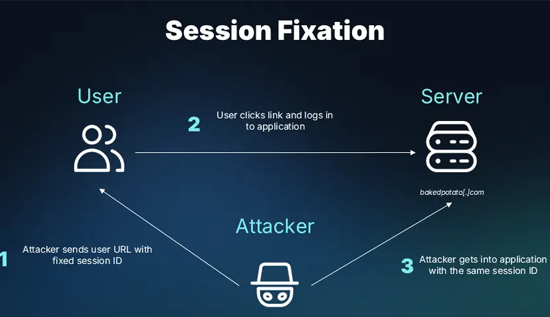
Session Hijacking: How It Works and How to Prevent It
Learn what session hijacking is, how session cookie theft works, common attack signs, and effective prevention strategies to protect accounts and web applications.
 16 Oct 2026
Orphan Pages in SEO: How to Find and Fix Them
Identify orphan pages in SEO and apply practical strategies to improve internal linking and discoverability.
 14 Oct 2026
Topical Authority vs Keyword Density: Which is Better?
Learn the difference between topical authority vs keyword density, how both affect SEO, and how to create helpful content that improves relevance, builds trust, and supports better search rankings.