Broken Internal Links: How to Find and Fix Them

Learn how to find and fix broken internal links, resolve 404 errors, improve user experience, and strengthen your website's internal linking SEO.
A well-organized website helps visitors find information quickly and allows search engines to discover important pages. Internal links play a major role in this process because they connect one page of your website to another. However, when these links stop working, they can create problems for both users and search engines.
Broken internal links are links on your website that point to pages or resources that can no longer be accessed at their intended URLs. They may lead to a 404 error, redirect to an unrelated page, or fail because of incorrect URLs, deleted content, or website changes.
Although a few broken links do not automatically cause a website to lose its rankings, large numbers of broken links can make navigation difficult, interrupt search engine crawling, and prevent visitors from reaching useful content. This is why checking and fixing broken links should be part of every technical SEO maintenance plan.
Understanding broken links SEO is especially important for websites with hundreds or thousands of pages. A small URL change can affect many internal links, particularly when the same page is linked from multiple blog posts, category pages, menus, or other sections of a website.
This guide explains what broken internal links are, why they happen, how they affect SEO, and how to find and fix broken internal links on a website. It also covers useful auditing tools, practical repair methods, and prevention strategies that help maintain a healthy website.
What Are Broken Internal Links?
Broken internal links are hyperlinks that connect pages within the same website but lead to destinations that do not work as expected.
For example, imagine that a blog post contains a link to:
https://example.com/seo-guide/
Later, the website owner deletes that page or changes its URL without updating the original link. When a visitor clicks the link, the browser may display a 404 Not Found error.
The link is now broken because the destination is unavailable at the original address.
Internal links commonly appear in:
- Blog posts and informational articles
- Website navigation menus
- Footer links
- Category and tag pages
- Product or service pages
- Breadcrumb navigation
- Related-content sections
- Buttons and calls to action
Broken links can occur anywhere a website directs visitors to another page on the same domain.
Broken internal links vs. external links
It is important to understand the difference between internal and external broken links.
| Link type | Description | Example |
| Broken internal link | Points to an unavailable page on your own website | An article links to a deleted blog post |
| Broken external link | Points to an unavailable page on another website | A blog post links to a resource that has been removed |
| Redirecting link | Points to a URL that forwards visitors elsewhere | An old URL redirects to a new page |
| Incorrect internal link | Contains a typo or incorrect destination | /seo-gude/ instead of /seo-guide/ |
Both internal and external links deserve attention, but internal links are usually easier to control because you manage the pages and URLs on your own website.
Common HTTP status codes
When checking broken links, you may encounter several HTTP status codes.
- 200 OK: The page loaded successfully.
- 301 Moved Permanently: The URL permanently redirects to another location.
- 302 Found: The URL temporarily redirects to another location.
- 404 Not Found: The requested page could not be found.
- 410 Gone: The resource has been intentionally removed.
- 5xx server errors: The server encountered a problem while processing the request.
A 404 or 410 response is not automatically a problem. A deleted page may be intentionally unavailable. The key question is whether existing internal links still direct visitors to that page and whether a suitable replacement exists.
A redirect is not necessarily broken either, but internal links that repeatedly pass through redirects may be worth updating to point directly to the final destination.
What Causes Broken Internal Links?
Before learning how to find broken internal links, it helps to understand why they occur. Identifying the original cause makes it easier to fix the problem and prevent it from happening again.
1. Deleted pages
Deleting a page without updating links that point to it is one of the most common causes of broken internal links.
For example, a website may remove an outdated article about keyword research. However, five other blog posts may still link to that article. Those five links become broken when the destination returns a 404 error.
How to prevent it: Before deleting a page, check whether other pages link to it. Update those links, redirect the old URL to a relevant replacement when appropriate, or remove links that no longer provide value.
2. Changed URLs
Website owners sometimes change URLs to improve readability, reorganize categories, or update their SEO strategy.
Suppose a page changes from:
https://example.com/seo/old-guide/
to:
https://example.com/seo/new-guide/
If internal links still point to the old URL and no redirect exists, visitors may encounter an error.
Whenever you change a URL, update the links that reference it. A permanent redirect can help preserve access to the new page when the old URL has already been published or indexed.
3. Typographical errors
A small typing mistake can make an internal link unusable.
For example:
- Correct URL: /technical-seo-guide/
- Incorrect URL: /technical-seo-gude/
The difference is only one missing letter, but the browser treats these as different addresses.
Copying URLs directly from the destination page or using a content management system's link picker can reduce these mistakes.
4. Incorrect relative paths
Some websites use relative URLs rather than complete URLs. These paths can become incorrect when developers move pages or change the website's directory structure.
For example, a link such as ../guides/seo/ may resolve differently depending on the page where it appears.
When using relative paths, verify that the destination resolves correctly from every relevant page template.
5. HTTP and HTTPS inconsistencies
A website may migrate from HTTP to HTTPS but retain old internal links that use the insecure version of its URLs.
For example, an internal link may point to http://example.com/about/ instead of https://example.com/about/.
The old URL might redirect successfully, but updating internal links to use the correct HTTPS destination reduces unnecessary redirects and supports consistent website architecture.
6. Website migrations and redesigns
Redesigning a website can change page structures, category names, navigation menus, and URL patterns.
If developers migrate content without checking existing links, broken internal links can appear across hundreds of pages.
A migration should include a URL mapping document, a crawl of the old website, and a post-launch crawl of the new website.
7. Content management system errors
Plugins, themes, page builders, and content management systems can also introduce broken links.
For example, a plugin might generate an incorrect URL, or a page builder might retain a link to a draft page that was never published.
After changing a theme, installing a plugin, or updating a page template, check important navigation elements and crawl the affected pages.
How Broken Internal Links Affect SEO Rankings
Broken links SEO is an important technical SEO topic, but it is necessary to understand the relationship between broken links and search performance accurately.
A broken internal link is not automatically a direct ranking penalty. Its SEO impact depends on the affected pages, the number of links involved, the website's structure, and whether search engines can still discover and access important content.
Here are the main ways broken internal links can create SEO problems.
1. They interrupt search engine crawling
Search engines discover many pages by following links from other pages. Internal links help search engine crawlers understand which URLs exist and how content is connected.
When an internal link points to a nonexistent URL, the crawler reaches an error instead of the intended destination.
One broken link does not prevent a search engine from discovering a page through other routes. However, if an important page has no other useful internal links pointing to it, broken links can contribute to poor discoverability.
This is particularly important for large websites with extensive content libraries.
2. They weaken internal link equity distribution
Internal linking SEO helps website owners direct attention toward important pages. Internal links also provide context about the destination through their anchor text and surrounding content.
When a link points to a broken URL, it cannot deliver the intended navigational and linking benefits to the target page.
For example, an established article might link to a new guide using descriptive anchor text. If the destination URL is incorrect, visitors cannot access the guide through that link.
Fixing the destination helps restore the intended connection between the two pages.
3. They create poor user experiences
Imagine a visitor reading an article about website security. The article recommends another internal guide, but the link opens a 404 page.
The visitor must return to the previous page, search the website, or leave entirely.
Repeated problems can make a website seem outdated or poorly maintained. This can reduce trust and interfere with visitors' ability to complete tasks.
Improving usability is a practical reason to repair broken links, even when the direct ranking effect is uncertain.
4. They can leave important pages poorly connected
A website's internal link structure helps search engines understand relationships between topics.
For example, an SEO website might connect these pages:
- Technical SEO
- Internal linking
- Broken link auditing
- XML sitemaps
- Website crawling
If links between these pages break, the website may become harder to navigate and its topical relationships less clear.
Repairing those links can improve the site's structure and make related information easier to discover.
5. They can waste crawl resources
Search engines allocate resources to crawling websites. When internal links repeatedly point to invalid URLs, crawlers may spend time requesting pages that no longer exist.
However, a few 404 responses are normal on most websites and do not necessarily waste a meaningful amount of crawl budget.
The issue becomes more relevant when a large website generates thousands of invalid URLs through outdated templates, broken filters, incorrect parameters, or widespread internal linking mistakes.
6. They can disrupt conversions
Broken links can prevent visitors from reaching product pages, contact forms, service descriptions, or other important destinations.
For a business website, this may mean lost inquiries or sales opportunities.
For a blog, it may mean readers cannot access supporting information or related articles.
Although conversion losses are not the same as ranking losses, they are an important reason to maintain functional internal navigation.
How to Find Broken Internal Links
Learning how to find broken internal links is the first step toward resolving them. The most effective method combines automated website crawling with manual checks of important pages.
Step 1: Crawl your website
Start by crawling your website with an internal link checker. A crawler visits pages, extracts their links, and checks the response status of destination URLs.
Depending on the tool, you can identify:
- Broken internal links
- Pages returning 404 or 410 errors
- Internal links leading through redirects
- Incorrect destination URLs
- Pages with few or no internal links
- Links to URLs blocked from crawling
For the most useful results, configure the crawler to include the main website sections, relevant subdomains, and important URL types.
If your website has thousands of pages, crawl it in manageable sections and review the most important templates first.
Step 2: Review the source page and destination URL
When the crawler finds an error, record both the page containing the link and the URL being linked to.
For example:
| Source page | Broken destination | Status |
| /seo-basics/ | /keyword-research-guide/ | 404 |
| /technical-seo/ | /site-audit-guide/ | 404 |
| /blog/internal-links/ | /seo-checklist/ | 404 |
The source page tells you where the repair must happen. The destination URL tells you what needs to be corrected.
Do not simply remove every link reported by the crawler. Some destinations may have been moved, while others may be intentionally unavailable.
Step 3: Verify the HTTP response
Open the destination URL and confirm the response status.
A browser displaying an error message does not always mean the page returns an actual 404 response. Some websites show a custom error page while incorrectly returning 200 OK, a problem known as a soft 404.
Other websites may temporarily return server errors because of maintenance or network issues.
Check the response with a browser's developer tools, an HTTP status checker, or your crawling software. Repeat the test if the error appears temporary.
Step 4: Check Google Search Console
Google Search Console helps website owners monitor indexing and crawling issues.
Review the Page indexing report for relevant 404 errors and inspect important URLs when necessary. Search Console can also help you understand whether Google has discovered or indexed a particular page.
Keep in mind that Search Console is not a complete replacement for an internal link checker. A reported 404 URL does not necessarily tell you which internal page contains the broken link.
Use a website crawler to identify source pages and then combine those results with Search Console data.
Step 5: Check important pages manually
Automated tools are useful, but manual checks remain valuable for critical website sections.
Review:
- Main navigation menus
- Footer links
- Homepage feature links
- Important category pages
- High-traffic blog posts
- Product and service pages
- Contact and conversion pages
Pay special attention to links generated by JavaScript, interactive elements, and page builders because some crawlers may not detect them correctly without suitable configuration.
Step 6: Review server logs when necessary
For large websites, server logs can provide additional evidence about which URLs crawlers and visitors request.
Logs may reveal repeated requests for nonexistent URLs, including URLs that are not easily discovered through a standard crawl.
Use this method when diagnosing widespread issues, migration problems, or large numbers of unexpected 404 responses.
Best Tools to Check Broken Internal Links
Choosing the right tools depends on your website's size, budget, technical experience, and auditing requirements.
The following are some of the best tools to check broken internal links.
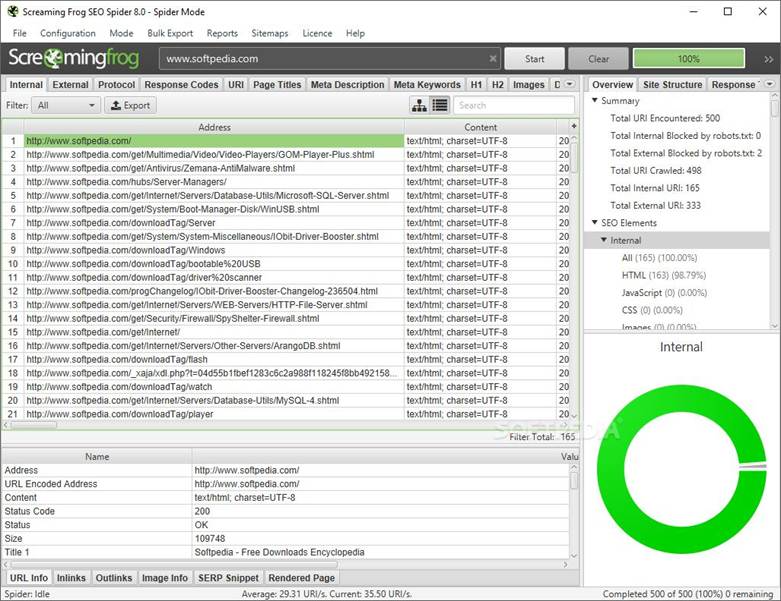
Screaming Frog SEO Spider
A desktop crawler that identifies broken links, response codes, redirects, and other technical SEO issues. It is particularly useful for medium and large websites that require detailed URL-level reports.
Best for: Detailed technical SEO audits.
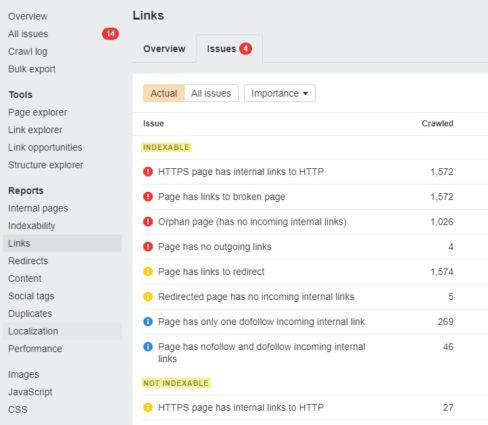
Ahrefs Site Audit
A website auditing tool that reports broken internal links alongside crawlability, redirect, and other technical SEO problems. It can be useful for teams managing ongoing SEO campaigns.
Best for: Ongoing technical SEO monitoring.
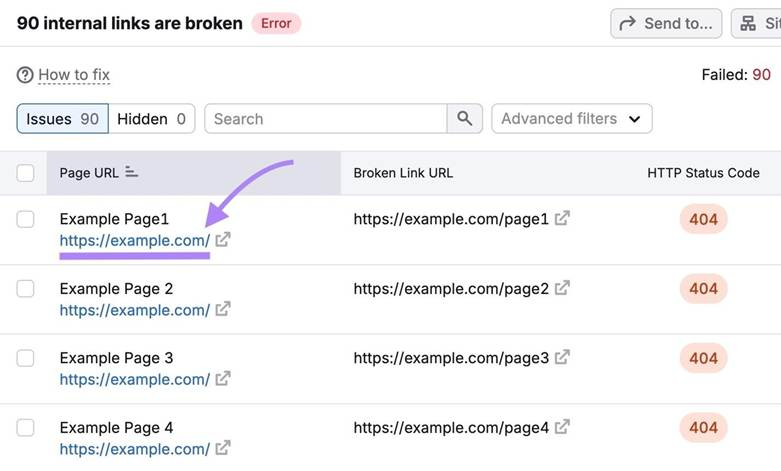
Semrush Site Audit
Semrush can help identify broken internal links and other website health issues through its crawling and reporting features.
Best for: Combining site audits with broader SEO analysis.
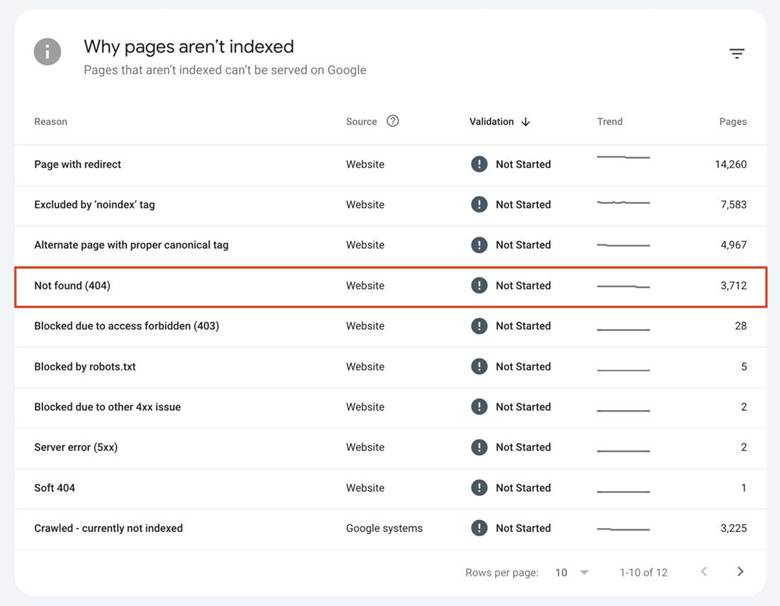
Google Search Console
A free Google tool that provides information about indexing and crawling. It helps you investigate pages Google has identified as unavailable, although it does not provide a complete list of every broken internal link.
Best for: Checking Google indexing and reported crawl issues.
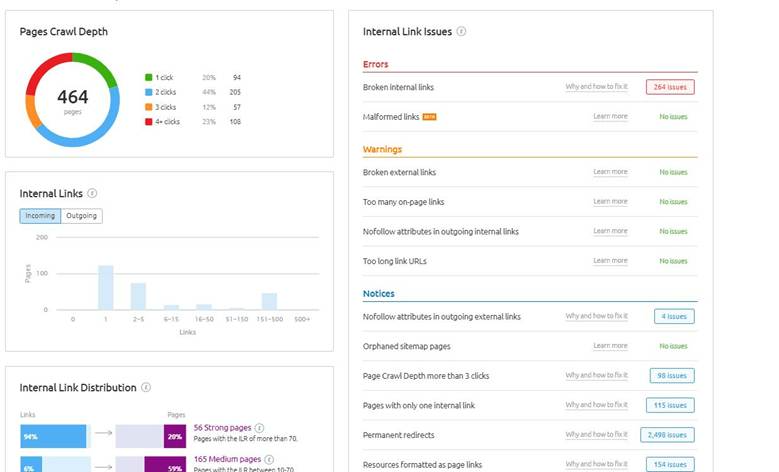
Sitebulb
A technical SEO auditing application that presents crawl findings through reports and visualizations. It can help teams understand internal link relationships and prioritize problems.
Best for: Visual technical SEO analysis.
Which internal link checker should you choose?
For a small website, Google Search Console combined with a free or basic crawling tool may be sufficient.
For a larger website, Screaming Frog, Ahrefs Site Audit, Semrush Site Audit, or Sitebulb can provide more detailed reports and help organize repairs.
Before choosing a tool, consider its crawl limits, JavaScript rendering capabilities, export options, scheduling features, and ability to identify the source page for each broken link.
How to Fix Broken Internal Links
After finding the affected URLs, the next step is to decide how to fix each issue. The correct solution depends on whether the destination page still exists, has moved, or has been intentionally removed.
1. Correct the URL
If a broken link contains a spelling mistake or points to the wrong path, update the link to the correct destination.
For example:
- Broken URL: /technical-seo-gude/
- Correct URL: /technical-seo-guide/
Edit the source page and replace the incorrect URL. Then revisit the page and click the link to confirm that it works.
This is usually the simplest solution when the destination page already exists.
2. Update links to the new URL
If a page has moved, update internal links to point directly to the new address.
Suppose the old URL is /blog/seo-tips/ and the new URL is /guides/seo-tips/.
Change links on relevant articles, menus, and category pages so that they use the new URL.
A 301 redirect from the old URL may still be appropriate to support external links and visitors using old bookmarks. However, internal links should generally point directly to the final destination instead of relying on the redirect.
3. Redirect outdated pages to relevant replacements
A redirect is useful when a page has permanently moved or when an old page has a genuinely equivalent replacement.
For example, if /old-seo-guide/ has been replaced by /complete-seo-guide/, a permanent redirect may help visitors and search engines reach the updated content.
Avoid redirecting every deleted URL to the homepage. A redirect should lead to a destination that meets the visitor's original intent.
If there is no suitable replacement, it may be better to remove the internal link and allow the retired URL to return an appropriate 404 or 410 response.
4. Remove unnecessary links
Some internal links no longer provide value.
For example, an article might reference an outdated announcement that has no replacement and is no longer relevant to the discussion.
In that case, remove the link while keeping the surrounding text natural.
Do not remove useful information simply because its original destination is unavailable. Consider whether a relevant, reliable replacement can preserve the reader's experience.
5. Restore deleted content when appropriate
Sometimes a page is deleted by mistake or removed during a website migration.
If the content remains valuable and relevant, restoring it may be the best option.
Before restoring the page, check whether the information is accurate, whether the original URL should be retained, and whether the page needs updating.
Restoring a useful page can repair multiple broken links at once when several articles reference the same destination.
6. Fix broken links in website templates
If broken links appear across many pages, the problem may exist in a shared template rather than individual articles.
For example, an outdated footer URL might appear on every page of a website.
In this situation, correct the link in the shared template or navigation configuration. Then crawl the website again to verify that the issue has been resolved everywhere.
Fixing the template is usually more efficient than editing hundreds of pages separately.
How to Fix Internal Links Pointing to 404 Pages
A 404 page means that the requested resource could not be found at that URL. To fix internal links pointing to 404 pages, follow this practical workflow.
Step 1: Identify every source page
Use your crawler's broken-link report to find the pages linking to the 404 URL. Record the affected pages before making changes.
Step 2: Determine whether the page moved
Search your CMS, sitemap, or content records for the original page. Check whether it has a new URL or a relevant replacement.
Step 3: Choose the right repair
Correct the URL if it contains a typo, update the link if the page moved, use a relevant redirect when appropriate, or remove the link if no useful destination exists.
Step 4: Test the result
Open the source page, click the updated link, and verify that the destination loads correctly. Check the HTTP status to make sure the repair is genuine.
Step 5: Run another crawl
Repeat the audit to confirm that the broken link no longer appears and that no new errors were introduced during the repair.
For websites built with WordPress or another content management system, make sure you update the actual link in the editor or shared template. Changing the destination page alone will not necessarily repair every old link.
Common Mistakes to Avoid When Fixing Broken Links
Fixing broken links is straightforward, but poor decisions can create additional SEO problems.
Redirecting everything to the homepage
Redirecting every broken URL to the homepage is not a reliable solution. The homepage may not satisfy the visitor's original intent, and search engines may treat an irrelevant redirect as a soft 404.
Use a redirect only when the destination is genuinely relevant.
Deleting all links that return errors
A crawler may report a broken link to a valuable article that was accidentally removed.
Before deleting the link, check whether the page can be restored or whether a suitable replacement exists.
Ignoring internal redirects
A link that redirects is not necessarily broken. However, updating internal links to their final URLs can simplify navigation and reduce unnecessary redirect requests.
Prioritize redirect chains, loops, and redirects to irrelevant destinations.
Trusting one crawl completely
Crawlers may miss links in JavaScript-generated content, authenticated sections, or pages that were inaccessible during the audit.
Combine automated reports with manual checks of important website areas.
Forgetting to test after editing
A link may appear correct in the content editor but still fail because of URL formatting, publishing issues, caching, or redirect configuration.
Always test the final destination after making changes.
How to Prevent Broken Internal Links
Prevention is more efficient than repeatedly repairing the same issues.
Use these practices to maintain a healthy internal linking structure.
Create a regular audit schedule. Crawl smaller websites monthly and consider more frequent checks for large or frequently updated websites. The ideal schedule depends on how often your content and URLs change.
Review links before deleting pages. Check whether other pages reference the URL before removing content.
Maintain a URL change log. Record old URLs, new URLs, redirect rules, and the reason for each change. This is especially useful during website migrations.
Use consistent URL structures. Avoid unnecessary URL changes and make sure internal links use the preferred HTTPS and canonical URL formats.
Check staging websites before launch. Test navigation, content links, redirects, and important page templates before publishing a redesigned website.
Use automated monitoring. Schedule crawls when your SEO tool supports them, and review alerts for newly discovered broken links.
Train content editors. Encourage writers to verify links before publishing new articles and to update older articles when destinations change.
Keep a record of important pages. Maintain a list of high-value landing pages, popular articles, and conversion pages so they receive priority during audits.
How to Prioritize Broken Internal Link Fixes
Not all broken links have the same importance. If your audit identifies hundreds of issues, prioritizing repairs helps you use time and resources effectively.
| Priority | Type of issue | Recommended action |
| High | Broken links in main navigation or important conversion paths | Fix immediately |
| High | Many pages linking to one broken, valuable destination | Restore or replace the destination and update links |
| Medium | Broken links in relevant blog articles | Repair during the current audit cycle |
| Medium | Internal links passing through unnecessary redirects | Update to final destination URLs |
| Low | Obsolete links with no relevant replacement and little user impact | Remove or leave retired URLs appropriately unavailable |
You can also prioritize URLs based on organic traffic, business importance, number of internal links pointing to the destination, and the importance of the source pages.
For example, fixing one broken link in the main navigation may be more valuable than repairing a link in an old article that receives almost no traffic.
The goal is not simply to reduce the total number of errors. It is to restore useful connections across your website.
How to Measure the Results of Broken Link Fixes
After repairing broken links, check whether the changes work as intended.
First, run another crawl and compare the new report with the original report. Confirm that the repaired URLs return the expected status codes and that internal links point to the correct destinations.
Second, monitor important pages in Google Search Console. Check for relevant changes in indexing status, crawl reports, and search performance over time.
Third, review website analytics where available. Look for improvements in navigation behavior, fewer error-page visits, and stronger engagement with important content.
Finally, check your server logs if you need to investigate recurring 404 requests or widespread URL problems.
Remember that SEO improvements may take time and are not guaranteed. Fixing broken internal links improves website maintenance, navigation, and crawl paths, but it does not guarantee higher rankings by itself.
Conclusion
Broken internal links are a common technical SEO issue that can interfere with website navigation, search engine discovery, and the distribution of internal links to important pages. They often result from deleted content, changed URLs, typing mistakes, website migrations, or outdated templates.
Learning how to find and fix broken internal links starts with crawling your website, verifying HTTP responses, and identifying the source pages responsible for each error. From there, choose the right solution: correct the URL, update the link, restore valuable content, apply a relevant redirect, or remove an unnecessary link.
Tools such as Screaming Frog, Ahrefs Site Audit, Semrush Site Audit, Sitebulb, and Google Search Console can help you identify and investigate problems. Combining automated audits with regular manual checks makes it easier to maintain a reliable internal linking structure.
Most importantly, treat broken link repair as an ongoing part of your SEO workflow rather than a one-time task. Regular audits, careful URL management, and post-migration testing can reduce recurring problems and create a better experience for both visitors and search engines.
More Articles
 27 Oct 2026
Core Web Vitals Explained: Metrics & How to Fix Them
Learn what Core Web Vitals are, how LCP, INP, and CLS affect user experience and SEO, and practical ways to fix performance issues and improve your website.
 23 Oct 2026
Website Audit Score: How to Check and Improve It
Check your website audit score, identify SEO issues, improve technical performance, site health and search visibility.
 21 Oct 2026
Low-Value Content: How to Identify and Fix It
Identify low-value content, improve content quality and fix SEO issues with practical strategies to boost website usefulness.
 20 Oct 2026
Session Hijacking: How It Works and How to Prevent It
Learn what session hijacking is, how session cookie theft works, common attack signs, and effective prevention strategies to protect accounts and web applications.