How to Reduce RAM Usage on Windows 11 Fast
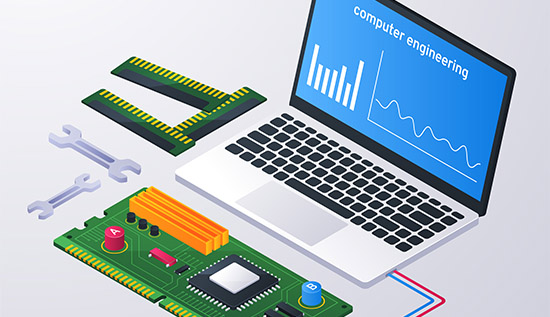
Reduce RAM usage on Windows 11 fast with simple steps to fix high memory usage and improve overall PC performance.
If your Windows 11 PC feels slow, freezes unexpectedly or it often happens because the computer is using too much memory to run multiple programs at once. Many users frequently ask, “why is my RAM usage so high” even when they're not running apps that are hard on them. This happens because Windows 11 is meant to make effective use of available memory but sometimes it consumes so too much and causes speed problems.
Understanding how to reduce RAM usage is necessary if you want your computer to run more smoothly and quickly. Using too much RAM can slow down everything, whether you are working, playing games or surfing the web. When your system doesn't have any more real memory, it switches to virtual memory, which is much slower and uses your hard drive. This is why learning how to reduce RAM usage on Windows 11 is so important for long-term performance also.
This guide explains practical and effective methods to reduce memory usage, optimize RAM performance and fix high RAM usage without having to buy expensive improvements or use complicated instruments. You will learn how to find processes that use a lot of memory, change system settings, while creating simple habits that make your computer run smoother also. You will also discover how to free up RAM without software, making it accessible even for beginners.
By the end of this article, you will clearly understand the best ways to reduce memory usage on PC and enhance the system's general performance. This information will help you get quicker speeds and more stable performance on any computer, no matter how powerful it is or how basic the laptop has become.
Understanding Why RAM Usage Gets High
Before jumping into solutions, it’s important to understand why is my RAM usage so high in the first place. Random Access Memory or RAM, is where your system briefly maintains information that programs need to process. Running more apps uses more RAM.
Common Causes of High RAM Usage
Before you can effectively reduce RAM usage, it’s important to understand what is consuming your memory. Many users only look at visible apps, but a large portion of RAM is often used by background processes and system services. This is why people frequently ask, “why is my RAM usage so high”, even when their activity seems minimal.
Windows 11 is meant to use memory efficiently, but if you don't manage it properly, it can use too much. It will help you to find the real reasons reduce memory usage, fix high RAM usage and optimize RAM performance more effectively.
1. Too Many Background Applications: Background apps keep running even when you're not using them. Some examples are chat apps, cloud services and simple methods to get information. Over time, they silently consume memory and make it harder to reduce RAM usage. Limiting background activity is a simple way to improve computer memory usage and boost performance.
2. Startup Programs: A lot of programs start up immediately when your PC turns on. Some are important, but others are just a waste of time and money. Too many starting apps can use up your memory quickly and make your system run slower, which is why people often ask, “why is my RAM usage so high” right after startup. Managing startup programs helps lower RAM usage Windows 11 quickly.
3. Memory Leaks: When apps don't free up RAM after use, this is called a memory leak. This makes memory use go up over time, even if you're not adding more jobs. This is a common reason why people can't fix their high RAM usage. Restarting can help for a while, but the real fix is to update or get rid of apps that are giving you trouble.
4. Browser Usage: Modern browsers use a lot of RAM, especially with multiple tabs and extensions. Each tab runs as a separate process, which increases memory consumption.
This is one of the main reasons behind “why is my RAM usage so high” particularly for users who multitask online.
5. Windows Services and Updates: Windows 11 uses RAM for system processes, updates, and background services. While necessary, these can sometimes increase memory usage, especially during updates. Understanding this helps you better optimize RAM performance and reduce RAM usage without affecting system stability.
Example 1: There are 20 Chrome tabs open at the same time, along with Microsoft Word and a design tool for the content writer. RAM usage hits 90% over time, which causes slowness. By learning how to reduce memory usage, they can significantly improve performance.
Example 2: A gamer sees stuttering while playing. When they look in Task Manager, they see that applications are using RAM in background mode. By applying techniques to fix high RAM usage, gaming performance improves instantly.
Understanding these causes helps you take targeted action to improve computer memory usage effectively.
How to Reduce RAM Usage on Windows 11 (Step-by-Step Methods)
Now let’s explore practical and proven ways to reduce RAM usage and boost the general performance of your system. If you follow these steps properly, they are easy to do, don't require any complicated understanding of technology and can provide you results straight away. If you have been wondering how to reduce RAM usage on Windows 11, this section gives you the most effective starting points.
1. Use Task Manager to Identify Heavy Apps: Task Manager is one of the best built-in tools in Windows 11 for keeping an eye on how the system is running. That way, you have immediate access to which programs are using up the most memory and other system capabilities. To begin, press Ctrl + Shift + Esc to open Task Manager, next, go to the "Processes" tab.
After that, sort the list by how much memory each app is using to see which ones are taking up the most space. You can stop any processes immediately if you see any that aren't needed or are taking an excessive amount of time.
This method is one of the fastest ways to lower RAM usage Windows 11 because it gives you real-time control over what is running. It is also especially helpful when trying to fix high RAM usage, because it helps you find the exact cause instead of simply imagining also.
2. Disable Startup Programs: Startup programs are apps that start up immediately when you turn on your computer. While some are necessary, a lot of them aren't needed right away and just take up memory for no reason.
You can check which programs are running by opening Task Manager and going to the "Startup Apps" area. By turning off starting programs that aren't needed, you can save RAM during boot and make the system faster overall. This simple adjustment can significantly reduce memory usage, especially on lower-end devices and helps your computer start faster and run more efficiently from the beginning.
3. Reduce Background Apps: Many programs in Windows 11 can keep running in the background even when you're not using them currently. These apps may send updates, notifications or sync info, but they constantly use up memory. You can change this by going to system settings, finding the apps you've loaded and changing how they work in the background.
Turning off background activity for apps you rarely use is a very effective way to free up RAM without software. Over time, this small change can make a noticeable difference and help you consistently reduce RAM usage while improving overall system responsiveness.
4. Adjust Visual Effects: Animations, shadows and transitions are some of the new visual effects in Windows 11 that make the user experience better. But these functions also use up system resources, like RAM and CPU power.
You can make your system run faster by going to Performance Options and choosing choices that focus on performance instead of appearance. This adjustment is particularly useful for older or low-spec devices also. Reducing visual effects helps optimize RAM performance and creates a smoother, faster experience, especially when multitasking or running multiple applications.
5. Restart Your PC Regularly: Though it may seem like a simple thing to do, restarting your computer is one of the best ways to keep memory usage in check. As time goes on, memory leaks, background operations and temporary files can make your system run less efficiently.
A simple restart clears temporary data and resets all running processes, allowing your system to start fresh. This habit can consistently reduce RAM usage, prevent long-term performance issues and improve computer memory usage without any additional effort.
6. Limit Browser Tabs and Extensions: Web sites are one of the main reasons why Windows 11 uses so much RAM. As you can see, each tab, application and plugin run as its own process, which can quickly use up a lot of memory. If you often work with multiple tabs open, you should close the ones you're not using and turn off any plugins that you don't need.
You can also use less memory by picking a browser that isn't too heavy or by managing your windows. Managing browser usage is one of the best ways to reduce memory usage on PC, especially for users who spend a lot of time online. It plays a key role in helping you reduce RAM usage and maintain smooth multitasking.
Advanced Techniques to Optimize RAM Performance
If the basic methods are not enough to fully reduce RAM usage, time to use more advanced methods. For users who constantly experience slowdowns or high memory usage, these methods go deeper into the system's setup and are especially helpful also. By applying these strategies correctly, you can significantly reduce memory usage fix high RAM usage and maintain a more stable system over time.
1. Increase Virtual Memory: Virtual memory is a tool in Windows 11 that lets your computer use a part of your hard drive as extra memory when your RAM is full. It's not as fast as real RAM, but it keeps your system from crashing or slowing down when it's busy.
You can change this setting by going to System Properties, then Advanced system settings, then Performance Settings and then changing the virtual memory setup. Increasing the room, you're given gives your system more options when running multiple programs at once. This method is particularly helpful if you are running demanding software or multitasking frequently.
It allows you to fix high RAM usage issues when your physical memory is limited and ensures your system continues to function smoothly even under pressure.
2. Scan for Malware: Malware is one of the most common reasons why computers use too much memory. A lot of the time, bad apps run in the background and use up RAM and other system resources while you're not looking.
If your system suddenly becomes slow or memory usage spikes without a clear reason, it is worth asking “why is my RAM usage so high” and considering the possibility of malware also. You can do a full system scan with Windows Security or another reliable protection program to find and get rid of harmful programs.
Once removed, you may notice an immediate improvement in performance. Regular scans are essential not only for security but also to reduce RAM usage and maintain efficient system operation.
3. Update Windows and Drivers: Keeping your system updated plays a major role in maintaining optimal performance. Windows updates often include bug fixes, performance improvements and better memory management. Similarly, outdated drivers can cause inefficiencies that lead to increased memory consumption.
By regularly updating your system and drivers, you can ensure better compatibility and smoother performance also. This helps optimize RAM performance and reduces the chances of encountering unexplained memory issues. If you frequently experience high memory usage, updates can often resolve hidden problems that are not immediately visible.
4. Uninstall Unused Applications: People often install programs they don't use very often, but these programs can still use up system resources while they're not running. Even when not actively running, some programs may load services or processes that take up memory.
Removing unnecessary applications through the system settings is a simple yet effective way to reduce memory usage. It also helps declutter your system and improves overall performance. For older devices or systems with limited RAM, this step is especially helpful because every bit of memory helps keep things running smoothly.
5. Use Lightweight Software Alternatives: Another smart approach to reduce RAM usage is switching to lightweight alternatives for everyday tasks. Many current apps have a lot of features, but they also use a lot of resources, which makes them use more memory.
When doing simple chores, using simpler tools can make your system much less busy. It can be clear when you use a lightweight text editor instead of a full programming environment or web-based tools instead of software that you install.
Over time, this habit helps improve computer memory usage and ensures your system remains responsive even when handling multiple tasks. It is one of the most practical and sustainable ways to reduce RAM usage in the long run.
Conclusion
Learning how to reduce RAM usage is one of the most practical and effective ways to improve your overall Windows 11 experience. When you use too much memory, it doesn't just slow down your system; it also makes it harder to switch between tasks and make apps respond quickly.
This can cause annoyance, less work getting done and even system instability over time also. Good news: most of the time, you don't need to get new tools to fix these problems. With the right approach, you can reduce RAM usage and significantly improve performance using simple built-in solutions.
Throughout this guide, we explored a wide range of strategies designed to reduce memory usage, optimize RAM performance and fix high RAM usage effectively. Finding memory-hungry programs in Task Manager, turning off starting programs that aren't needed and limiting background processes are all important steps that can be taken to free up valuable system resources.
We also talked about more complicated methods, like how to change virtual memory, scan for malware and keep your system up to date to make sure it works at its best.
If you have ever found yourself asking, “why is my RAM usage so high” with this new knowledge, you can now clearly see and use the reasons. With the right information, you can find and fix problems like too many browser tabs, background apps or system settings that don't work well. More importantly, you now know how to reduce RAM usage on Windows 11 in a way that is sustainable and easy to maintain over time.
Building good habits is key. Regularly restarting your computer, keeping your system updated and being mindful of the applications you install and run can greatly improve computer memory usage. Small actions, when done consistently can have a big impact on performance. These habits not only help you lower RAM usage Windows 11, but also ensure your system remains fast and responsive in the long term.
In addition, understanding how to free up RAM without software makes it easier to manage your machine without using outside programs. This protects you, makes things easier and speeds up the improvement process. The best ways to lower PC memory usage are to use both manual methods and advanced changes. This is true whether you are using a high-end device or a cheap laptop.
Finally, getting your system to work better doesn't come down to just one fix. It comes down to using a number of smart methods together. You can have a better, faster and more stable Windows 11 experience if you act on what you've learned today and keep doing the package.
More Articles
 25 Aug 2026
What Is an Infostealer? How It Steals Your Passwords
What is infostealer malware? Learn how infostealers steal passwords, browser cookies and personal data, how to detect an infection, and how to protect your devices.
 21 Aug 2026
How AI Search Is Changing SEO: Things You Must Know
See how AI search is changing SEO, from AI Overviews and AI Mode to content optimization and search visibility.
 19 Aug 2026
Unsafe Websites to Avoid: 10 Warning Signs of a Scam
Spot unsafe websites to avoid with 10 key scam warning signs, including fake URLs, suspicious payments and fraudulent offers.
 18 Aug 2026
Payment Gateway Fees in Cambodia: Costs & Comparison
Compare payment gateway fees in Cambodia, transaction charges, processing costs, setup fees, and key factors businesses should consider when choosing a payment gateway.