Windows Settings Making Your PC Slow in 2026
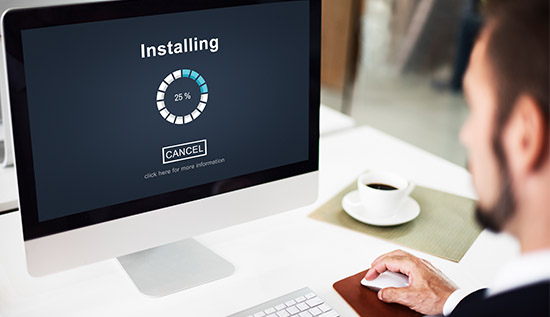
Fix slow PC issues caused by Windows settings. Improve speed, boost performance and optimize Windows 11 for smoother daily use.
In 2026, it surprises a lot of people that even fast computers with Windows 11 or later updates feel slow, jerky or unresponsive when doing simple duties.
However, hardware is no longer the only thing which influences performance; software setup is now even more important. In most cases, Windows settings making your PC slow are the hidden reason behind poor performance, not outdated components.
Modern Windows systems come packed with visual effects, background services, cloud syncing, monitoring processes and features that run on their own are all there to make things easier for you. These features make things easier to use, but they can use up CPU, memory and disk space without being noticed.
Because of this, users often have trouble starting apps quickly, getting their phones to start up and playing games or doing multiple things at once also.
Another major issue is misconfigured slow Windows settings, which get bigger over time as people install apps, update drivers and change system settings without realizing it slows down the system also. On mid-range laptops and office PCs, even with Windows 11 set to its default settings, there can be visible slowdown.
This is where understanding Windows performance settings becomes essential. Users can make the system much faster without buying new hardware by learning how system settings affect how resources are used.
Many workers now use Windows optimization tips to fine-tune their systems and make their workflows run more smoothly, especially when they work from home or make content.
In fact, one of the most common complaints today is Windows 11 slow performance, even more so after big changes. Most of the time, these slowdowns are caused by programs that start up automatically, background sync and graphics that aren't needed but add to the system load.
To fix these issues, users must first understand the role of PC settings affecting speed and how they interact with memory, CPU, and storage performance. Once identified, these issues can be corrected using the right adjustments and techniques.
This guide will explore how Windows settings making your PC slow can be identified and fixed in 2026, along with practical solutions such as how to speed up Windows PC, disabling unnecessary features and applying best Windows settings for faster performance.
Real-life examples, like office efficiency systems and gaming laptops, will also be used to show how small changes can make a big difference.
Hidden System Configurations Causing Slow Performance
One of the biggest reasons behind Windows settings making your PC slow consists of system settings that are hidden and run in the background without being noticed. An average user doesn't change these settings very often because they are usually on by default.
Animations, shadows and transparency are some of the visual effects that make a big difference. They look good, but they are using up GPU and CPU resources for no reason. One of the best ways to work is to deactivate or lessen these consequences Windows optimization tips for improving speed on older or mid-range systems also.
Background indexing and sharing services are also very important. Windows constantly organizes files to make searches better, but this can slow things down a lot when they are being used. When used with cloud services like OneDrive collaborating, these steps make a significant difference in Windows 11 slow performance.
Also, many people forget to change the power settings. The "Balanced" method by default puts saving energy ahead of speed, which can slow down the CPU. One of the easiest things you can do is switch to a high-performance plan Windows performance settings adjustments that can instantly improve responsiveness.
Even more harmful are system features that are out of date or not needed, including:
- Permissions for applications running in the background
- Receiving diagnostic information
- Application changes that happen automatically in the background
- Starting-up mobile application entitlements
All of these contribute to Windows settings making your PC slow in 2026, Especially when a lot of different services are running simultaneously at the same time also.
An example from everyday circumstances is how a small business office is set up from scratch. When employees using conventional computers switched between Excel, browser extensions and software that was internal, they experienced disruptions.
Following a review of the underlying processes, IT technicians discovered that startup settings slowing down your computer were starting up more than 15 programs in the background. Once it was turned off, boot time went down by almost 60% and switching between tasks went much more smoothly.
Using a student machine for online classes is another example. Background sync and graphic effects that weren't needed made the device quite sluggish for video calls and browsing. Adjusting Windows settings making your PC slow resolved the issue without requiring a hardware upgrade.
Ultimately, identifying and fixing these hidden configurations is the first step in solving how to fix slow Windows 11 performance. Many people don't realize how much these small settings can slow down the whole system.
Startup Programs and Background Processes Overloading Your System
A major contributor to Windows settings making your PC slow it has numerous applications that start up immediately when the system begins to boot up and run in a background mode.
Most of the point in time, these programs include third-party software that quietly uses up memory, messaging applications, update applications and cloud-based storage tools. Over time, this causes significant postponements throughout starting and generally makes things slower and less responsive.
This issue is directly linked to startup settings slowing down your computer, which is still one of the most overlooked reasons why systems slowdown in 2026. A lot of people who install software do not understand that it automatically adds itself to the starting procedure.
Users can change how Windows starts up by using the Windows Task Manager and possibilities to but most people never modify these preferences. Because of this, systems get too busy, which makes Windows 11 run slowly even on powerful hardware.
Processes that happen in the background are also big. There are apps that keep using CPU cycles, RAM, and sometimes network data even when they are not in use. In turn, this slows things down, giving users lag, freezing or reaction times that are a prolonged period.
To address this, applying proper Windows performance settings is essential. Performance can be greatly increased by turning off starting items that aren't needed and limiting simple tasks in the background also.
The most prevalent instances of bad startup behavior are listed in the following manner:
- Launching messaging applications on a personal basis
- Within boot time, cloud-based data storage synchronizes
- Launchers for games continue to become improved
- Running applications on software that is not actually being implemented
These issues collectively represent classic PC settings affecting speed, especially in systems used for multitasking or gaming.
Some real-life examples include a freelance video & film editor. More than just three minutes were needed to start up their system because many creative software programs started up immediately.
Changing the settings that had been slowing down your computer's startup time cut it down to less than 45 seconds and simple editing programs started up a lot more quickly.
Here's another example: while playing games on a gaming technology, background game launchers and update services were running smoothly. This caused issues with dropping frames and a simple slowdown. Optimizing Windows settings making your PC slow in 2026 resolved the issue and improved gaming stability.
One of the most useful things is to understand and control how startups work Windows optimization tips available today. It's convenient, secure and immediately improves your productivity.
Advanced Optimization Techniques for Faster Windows Performance
Beyond basic adjustments, advanced configuration changes are often necessary to fully eliminate Windows settings making your PC slow in modern systems.
Turning off visual and system consequences that aren't needed while remaining important user interface functions on is one of the best ways to do the task. This makes it easier to use and faster while also decreasing the load on the computer processor and Hardware.
Keeping care of memory virtualization and optimizing storage capacity is another advantageous methodology. Systems with small amounts of RAM frequently employ virtual memory quite frequently, which can slow operations down if it's not set up appropriately.
Additionally, reviewing background permissions for apps is critical. Many applications request continuous access even when not in use, contributing to Windows 11 slow performance over time.
Advanced users may additionally conserve system capabilities by turning off monitoring and diagnostic services that aren't requested. This lowers the computer's operations in the background while creating room for busy responsibilities.
Some essential recommendations for optimizing Windows include the following:
- Adjusting the performance levels to get the maximum speed
- Turning off starting services that are not necessary
- Regular cleanup assists in making storage work easier and more effective
- Managing application permissions in background mode
- Updating modules to make them simpler and more effective
These adjustments collectively improve system responsiveness and reduce the impact of Windows settings making your PC slow.
Improvements for the system are also very important. Even though updates are necessary for security they can sometimes reset a computer or re-enable slow Windows configurations, which can make systems that were already running slowly slow down once again.
A practical example is a content creator using a mid-range desktop for streaming and editing. After applying best Windows settings for faster performance, including turning off background services that weren't needed and making the best use of storage space, display times got approximately thirty-five percent smoother also.
As a replacement example, consider a computer in the office that experiences slowdown when accessing the database. Using techniques for speeding up a Windows PC and modifying system services made response times considerably quicker, which helped workers do their duties better.
These sophisticated methods are necessary for users who want long-term stability and regular performance also.
Conclusion
In 2026, System speed is not simply determined by hardware anymore; configuration of software additionally plays an important responsibility. As we have explored, Windows settings making your PC slow is one of the most conventional but often forgotten explanations why systems fail to function effectively.
Slowdowns are caused by numerous subjects, ranging from excessive number of aforementioned services running beginning at startup to simple graphical enhancements and hidden system configurations.
Understanding PC settings affecting speed permits users easily transform their procedures and make them smoother without making expenditures on fixes and upgrades.
By applying the right Windows optimization tips, users have the ability to get cleared of processes that aren't mandatory, determine how the system starts up, and modify the system settings to maximize the most out of the system.
Whether it is fixing Windows 11 slow performance or learning how to fix slow Windows 11 performance, most of the time, the answers are easy but very effective.
We also saw how startup settings slowing down your computer can have an enormous impact on system initialization and everyday usage, particularly when doing work as well as in applications.
Speed, on the other stability, efficiency and simplicity are all capable of being significantly enhanced by making small changes to how the system is initially set up to begin with.
Ultimately, fixing Windows settings making your PC slow in 2026 makes you conscious and helps you do things more effectively also. Any individual is capable of transforming a system that runs slowly into an efficient, responsive machine alongside an appropriate method and routine maintenance.
By applying the strategies covered in this guide and adopting best Windows settings for faster performance, you can keep your PC running effortlessly, effectively and ready for current responsibilities until well into the foreseeable future, regardless of the year 2026.
Read More: How to Speed Up Windows PC: Best Performance Tips
More Articles
 25 Aug 2026
What Is an Infostealer? How It Steals Your Passwords
What is infostealer malware? Learn how infostealers steal passwords, browser cookies and personal data, how to detect an infection, and how to protect your devices.
 21 Aug 2026
How AI Search Is Changing SEO: Things You Must Know
See how AI search is changing SEO, from AI Overviews and AI Mode to content optimization and search visibility.
 19 Aug 2026
Unsafe Websites to Avoid: 10 Warning Signs of a Scam
Spot unsafe websites to avoid with 10 key scam warning signs, including fake URLs, suspicious payments and fraudulent offers.
 18 Aug 2026
Payment Gateway Fees in Cambodia: Costs & Comparison
Compare payment gateway fees in Cambodia, transaction charges, processing costs, setup fees, and key factors businesses should consider when choosing a payment gateway.